
Add Captions in CapCut
 RenderCutCreator Tips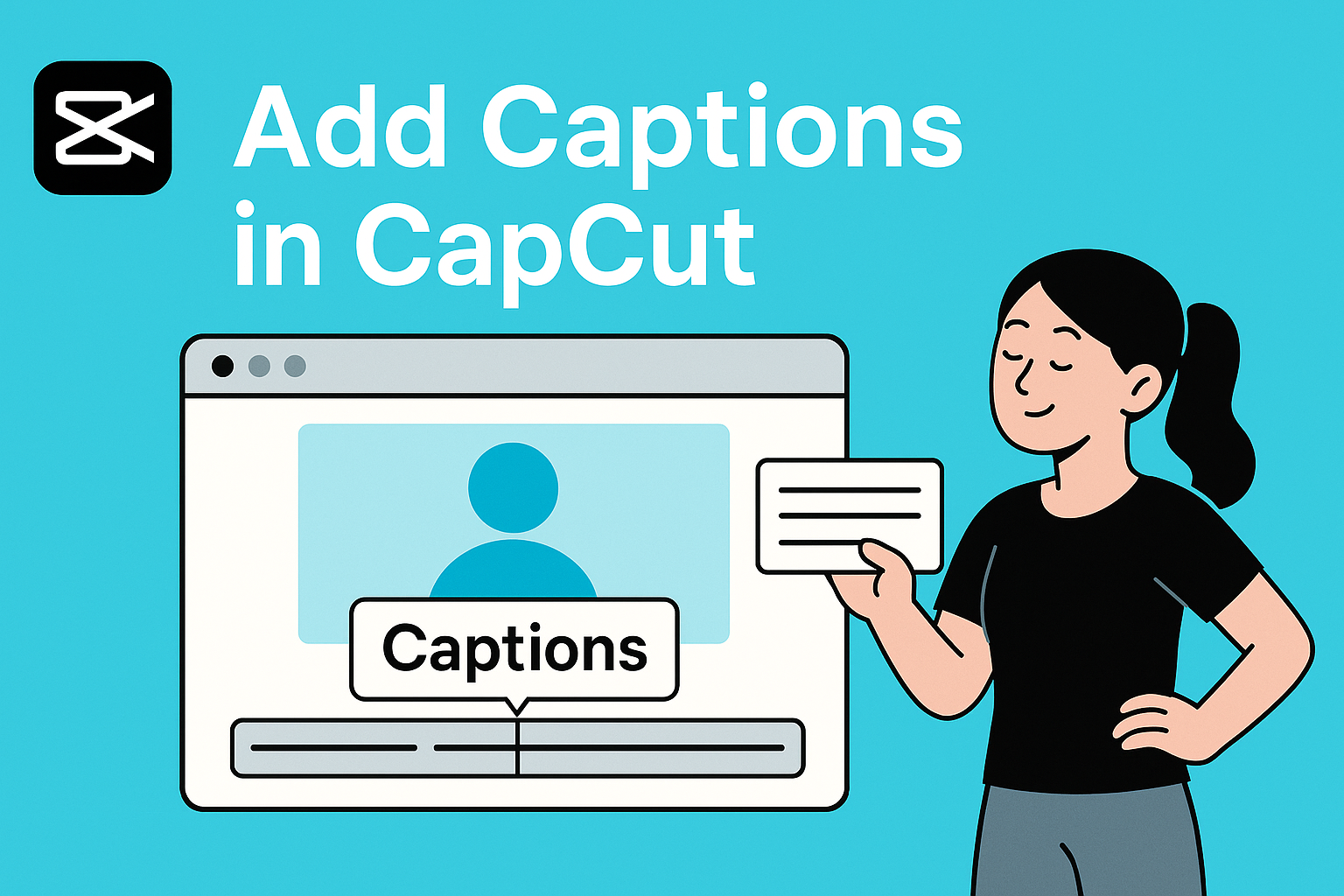
Captions make your videos more engaging, accessible, and easy to understand, especially on social media where many users scroll without sound. Whether you’re sharing tutorials, vlogs, or product reels, captions help your message land clearly.
CapCut has quickly become a go-to tool for creators on both mobile and desktop. It’s simple, fast, and packed with editing features that match professional tools. In this blog, I’ll show you how to add captions in CapCut the right way so your videos not only look great but speak clearly too.
What Are Captions and Why Do They Matter?
Captions are the on-screen text that shows what’s being said in a video. They help viewers understand the audio by converting speech and sounds into written words. Unlike subtitles, captions include background sounds and speaker IDs, making them helpful even when viewers can’t hear the audio at all.
Captions make videos easier to watch for everyone, especially for people who are deaf or hard of hearing. They also keep viewers engaged longer and help content reach more people. In fact, studies show that videos with captions see a 12% increase in view time and 80% more people watch them till the end. Captions also improve SEO because search engines can read the text and index the video better.
Step-by-Step Guide: How to Add Captions in CapCut
A. Using Auto Captions Feature
- 1. Enabling auto-captions in CapCut
- Open your project in CapCut. Tap on ‘Text’ > ‘Auto Captions’. Choose whether you want to generate captions from original audio, voiceover, or imported sound.
- 2. Selecting language and accuracy settings
- Pick the correct language (e.g., English, Hindi). For best results, ensure clear audio and minimal background noise to improve transcription accuracy.
- 3. Adjusting and timing text to match audio
- CapCut auto-syncs text to audio, but you can fine-tune each caption in the timeline. Drag to shift timing or trim segments as needed for perfect sync.
B. Manually Adding Captions
- 1. Adding text layers manually
- Tap on ‘Text’ > ‘Add Text’. Type your caption manually and place it on the timeline matching the voice or scene.
- 2. Customizing font, size, position, and effects
- Choose from CapCut’s font styles, text sizes, and animation presets. Place text at the bottom center of the screen for better readability.
- 3. Best practices for short-form video captions
- Keep captions short and punchy, use bold fonts for clarity, and maintain high contrast between text and background for visibility on small screens.
Limitations of CapCut’s Captioning Workflow
CapCut makes captioning simple, but it comes with a few limitations. If you’re working on long videos or trying to edit in bulk, the process can take a lot of manual time. You need to go through each section carefully, which slows things down. For brands that want specific font styles, placements, or animations, CapCut doesn’t offer much room for advanced customization.
This can make it hard to match your video with your brand’s look. When it comes to multilingual content, editing captions for different languages becomes time-consuming. You have to manually adjust translations and align them with the audio. These small things can add up when you’re managing content at scale.
When to Use RenderCut Instead of CapCut
Use RenderCut when you want to save time by adding captions to many videos at once. It’s perfect if you’re a content creator handling bulk video edits. RenderCut adds emojis, stylish fonts, and animated captions automatically, making your videos more eye-catching without much effort.
It also supports multiple export formats, so your videos look great on Instagram, TikTok, YouTube Shorts, and more.
Think of RenderCut as your caption and automation assistant, while CapCut is your manual editing tool. You can still use CapCut to trim, add music, or apply effects, but let RenderCut handle the captions in bulk. Together, they make your content faster and more fun to create.
FAQs
Does CapCut auto-generate captions accurately?
CapCut’s auto-generated captions are not highly accurate, especially with poor audio quality. They require manual editing for synchronization and correction.
Can I export SRT files from CapCut?
Yes, you can export SRT files from CapCut. Just use the desktop version, where CapCut lets you auto-generate captions and download them as an SRT file for adding subtitles to other videos or platforms.
How do I edit multiple caption lines in CapCut?
You can edit multiple caption lines in CapCut by selecting all the text layers together on the timeline, then changing the font, size, color, or position at once. This saves time and keeps your style consistent.
Is RenderCut better for longer or bulk videos?
RenderCut works best for bulk videos it auto-generates captions, adds B-rolls, emojis, and styles in one go, saving hours. Many users create 10–100+ short videos at once using its bulk editor.
Conclusion
Adding captions in CapCut is key to making your videos more engaging and accessible. Whether you prefer manual precision or the speed of automation, both methods offer unique benefits depending on your workflow and creative control needs.
If you’re managing bulk content or tight deadlines, RenderCut is your go-to tool to automate captions, maintain quality, and save hours. Start using smarter tools to create content faster and scale effortlessly. Level up your captioning game with RenderCut today.