
Opus Clip vs Submagic vs RenderCut
 RenderCutCreator Tips
I have used all three of these tools on real client work and personal content. Not a trial run on a test video. Not a 5-minute demo. Actual production work, captioning 20+ videos per week across Instagram Reels, YouTube Shorts, and TikTok over the past several months.
This comparison comes from that experience. No affiliate bias, no “tool A wins because I say so.” Just an honest breakdown of where each tool performs best, where it falls short, and which one fits which type of creator.
If you are actively deciding between Opus Clip, Submagic, and RenderCut for your short video workflow, this guide will save you weeks of trial and error.
What this comparison covers:
- What each tool is actually built for (they are not the same)
- Side-by-side testing on real short videos
- Caption quality, styling control, and export speed
- Honest pricing breakdown with cost over 12 months
- Who should use which tool and why
- The workflow I personally use and recommend
1. These Three Tools Solve Different Problems
Before comparing features, you need to understand something most comparison posts skip: Opus Clip, Submagic, and RenderCut are not interchangeable. They were built for different jobs.
| Tool | Primary Job | Built For |
|---|---|---|
| Opus Clip | Turn long videos into multiple short clips | Podcasters, webinar hosts, long-form creators |
| Submagic | All-in-one short video editing with AI automation | Agencies, teams, high-volume social creators |
| RenderCut | AI captioning with deep styling and word-level control | Creators, brands, anyone who wants professional captions fast |
If you feed a 45-minute podcast into RenderCut, it will not clip it into shorts. That is not what it does. If you upload a 30-second reel to Opus Clip hoping for word-level caption control, you will be disappointed. Knowing this upfront saves you from choosing the wrong tool for your workflow.
2. How I Tested Each Tool
I ran the same test across all three tools to keep the comparison fair. Here is exactly what I did.
Test setup:
- 3 raw vertical videos (25 seconds, 45 seconds, 90 seconds)
- Each video had clear speech, moderate background noise, and mixed pacing
- I uploaded each video to all three tools on the same day
- I measured transcription time, edited captions for quality, applied styling, and exported
- I tracked total time per video from upload to finished export
No cherry-picked results. No “best case” demos. Just real content through real workflows.
3. Opus Clip: Best for Clipping, Not for Captions
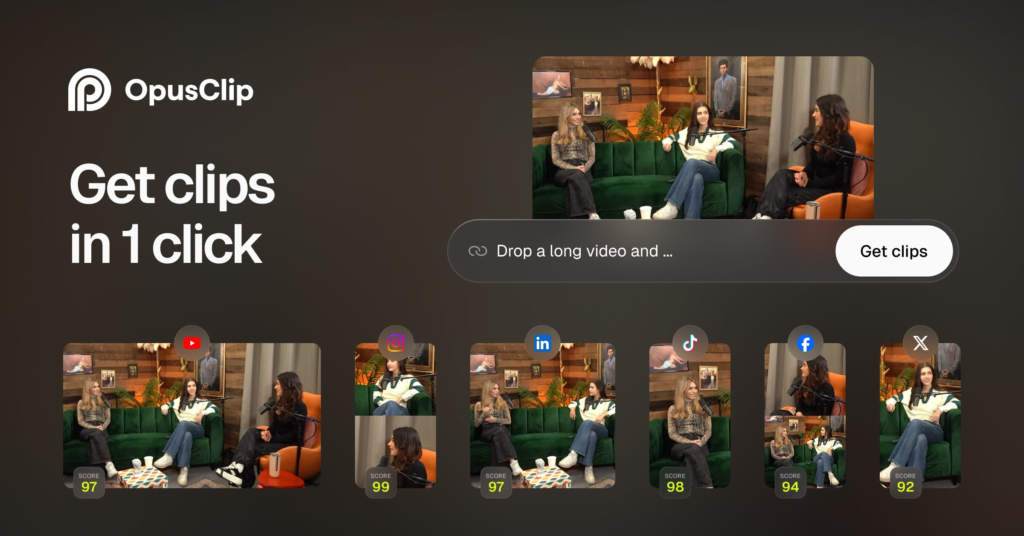
Opus Clip impressed me on its core job. I dropped a 20-minute talking head video into it, and within minutes I had 8 short clips extracted with virality scores ranked from highest to lowest. The AI clipping is genuinely smart. It finds the punchiest segments and creates standalone shorts that actually make sense out of context.
But here is where it broke down for my use case. The captions on those clips were functional, not strategic. Every word looked the same. No highlights, no chunking, no visual hierarchy. The caption styling options felt like an afterthought compared to the clipping engine.
What Opus Clip does well:
- AI clipping from long videos is the fastest I have tested
- Virality scoring helps prioritize which clips to post first
- Auto-reframing for vertical keeps subjects centered
- Direct social publishing saves time on distribution
Where it falls short:
- Caption styling is basic with limited word-level control
- Credit-based pricing gets expensive fast at volume (60 free credits/month, paid starts at $15/month)
- Not built for videos that are already short. You cannot upload a 30-second reel and just caption it well
- Some users report processing failures and confusing credit mechanics
My experience: I used Opus Clip for a batch of podcast clips and it saved me about 3 hours of manual clipping work. But I always had to move the clips into a second tool to fix the captions before publishing. The captions it generates are accurate, but they do not look good enough to post as-is on a brand account.
4. Submagic: Best for Full Automation
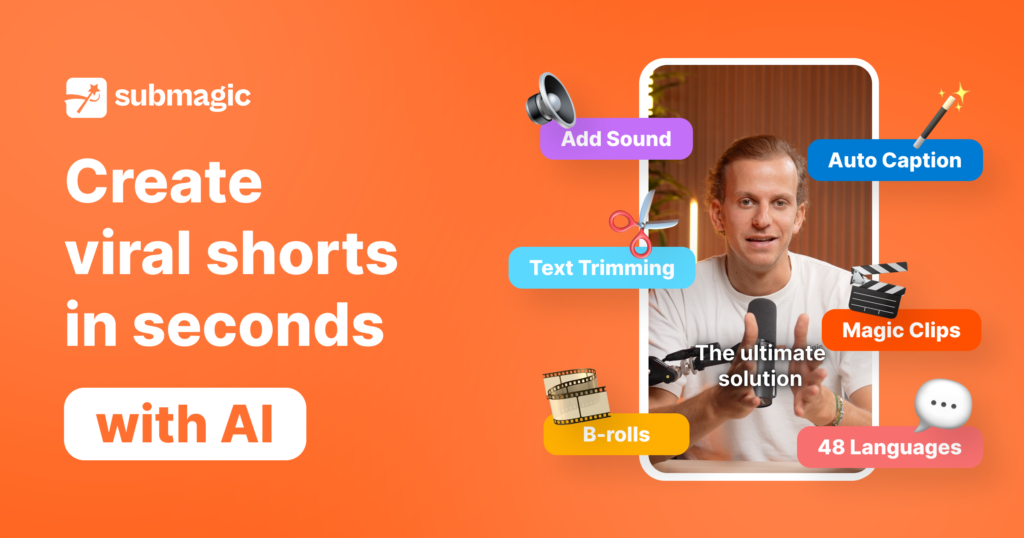
Submagic’s biggest selling point is the AI Auto-Edit. Upload a video, click one button, and you get back a captioned, trimmed, B-roll-enhanced short. For pure speed on a single video, this is hard to beat.
I tested Submagic on all three of my test videos. The transcription was accurate and fast. The dynamic caption templates looked polished right out of the box. The B-roll suggestions were relevant about 70 percent of the time and needed manual swapping on the rest.
The issue I ran into was control. When I wanted to change one specific word’s color in a caption, or adjust the timing on a single line, the editing interface felt restrictive compared to a caption-first tool. Submagic is optimized for speed, not precision. And for many creators, that trade-off is worth it.
What Submagic does well:
- One-click AI Auto-Edit handles captions, trimming, and B-roll together
- Dynamic caption templates look scroll-stopping from the start
- 48+ language support for multilingual content
- Team collaboration and brand kit features on higher plans
Where it falls short:
- Word-level caption editing is less flexible than dedicated caption tools
- Pricing climbs quickly: Starter at $14 to $20/month (15 to 20 videos), Pro at $23/month, Business at $41/month
- Upload speed can be slow on larger files (5 to 10 minutes reported)
- Full feature access requires higher-tier plans
My experience: I used Submagic for a 2-week sprint where I needed to produce 40 captioned reels for a client campaign. The speed was incredible. About 60 percent of the videos came out ready to publish without additional editing. The other 40 percent needed caption adjustments that took longer than expected because the tool is not built for deep manual control. Net time saved: significant, but the lack of precision bothered me on brand-sensitive content.
5. RenderCut: Best for Caption Quality and Styling
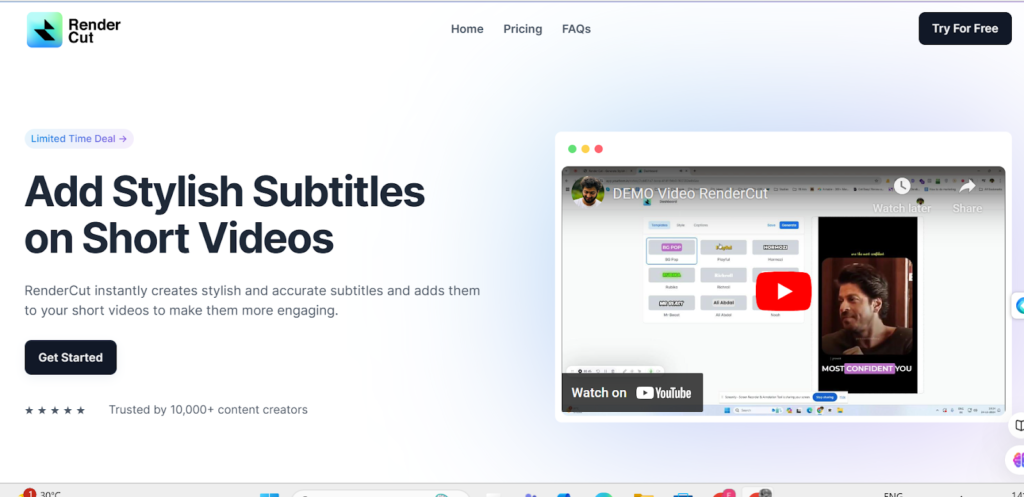
RenderCut approaches the problem differently. It does not try to clip, trim, or add music. It focuses entirely on one thing: making captions look and perform better than any other tool on the market.
When I uploaded my test videos, the transcription was fast and accurate. But the real difference showed up in the editing phase. I could highlight individual words in a contrasting color, adjust the timing of each caption block by dragging it on a timeline, and save the entire style setup as a template for my next batch.
That template system is what made the biggest difference for my workflow. I styled one video perfectly, saved the settings, and applied the same look to the next 15 videos in under 30 seconds each. For anyone captioning at volume, that efficiency compounds fast.
What RenderCut does well:
- Deepest word-level styling control: font, color, size, highlight, animation per word
- Saveable style templates that apply across batches
- AI Hook Title generator for scroll-stopping first lines
- Auto B-rolls and emoji placement
- Lifetime deal available (one-time payment, no subscription)
- No watermark even on the free plan’s exported videos
Where it falls short:
- Does not clip long videos into shorts (not its job)
- No built-in silence trimming or full video editing features
- Smaller user base compared to Opus Clip and Submagic (newer tool, growing)
My experience: RenderCut became my daily captioning tool after testing it against the other two. The reason is simple: the captions look better. Not slightly better, noticeably better. The word highlights, the chunking control, the timing precision. All of it translated directly into higher watch time on the reels I published. I documented that exact system in How We Increased Reel Watch Time by 42% Using AI Captions.
6. Feature-by-Feature Comparison
| Feature | Opus Clip | Submagic | RenderCut |
|---|---|---|---|
| AI transcription speed | Fast | Fast | Fast |
| Transcription accuracy | High | Very high (98%+) | High |
| Caption styling control | Basic | Good | Advanced |
| Word-level highlights | Limited | Yes | Yes (best-in-class) |
| Long-to-short clipping | Yes (core feature) | Yes | No |
| Auto B-roll | Yes | Yes | Yes |
| Silence/filler trimming | No | Yes | No |
| AI Hook Title | No | No | Yes |
| Saveable style templates | Yes (brand kit) | Yes (brand kit on higher tier) | Yes |
| Team collaboration | Pro plan | Yes | No |
| Social publishing | Yes | No | No |
| Free plan | 60 credits/month (watermark) | 3 videos (watermark) | 5 videos (no watermark) |
| Lifetime deal option | No | No | Yes (from $49) |
7. Pricing Breakdown: What You Actually Pay Over 12 Months
Monthly pricing can be misleading. Here is what each tool actually costs over a full year for a creator producing 20 to 30 short videos per month.
| Tool | Monthly Cost | 12-Month Total | Notes |
|---|---|---|---|
| Opus Clip (Starter) | $15/month | $180/year | 150 credits/month, editor and B-roll on Pro only |
| Opus Clip (Pro) | ~$30+/month | $360+/year | Full features, higher credit allocation |
| Submagic (Starter) | $14 to $20/month | $168 to $240/year | 15 to 20 videos/month, basic features |
| Submagic (Pro) | $23/month | $276/year | Full features including AI Auto-Edit |
| RenderCut (Lifetime Tier 1) | $0 (one-time $49) | $49 total | 25 videos/month, all future updates included |
| RenderCut (Lifetime Tier 3) | $0 (one-time ~$147) | $147 total | Higher volume, all features, stackable codes |
The math is clear. If captions are your primary need, RenderCut’s lifetime pricing eliminates ongoing costs entirely. Submagic and Opus Clip both require active subscriptions that compound over time. After just 3 to 4 months, the subscription cost on either tool exceeds RenderCut’s one-time lifetime price.
That said, if you need long-to-short clipping (Opus Clip) or full video auto-editing (Submagic), those features justify the subscription cost for those specific workflows.
8. Who Should Use Which Tool
After months of using all three, here is my decision framework.
| Your Workflow | Best Tool | Why |
|---|---|---|
| You film short videos and need captions that perform | RenderCut | Best styling, lowest cost, purpose-built for caption quality |
| You have long podcasts/webinars to turn into clips | Opus Clip | AI clipping is unmatched, captions come as a bonus |
| You run an agency editing 50+ client videos/month | Submagic | AI Auto-Edit saves hours, team features built in |
| You want the best captions without monthly fees | RenderCut | Lifetime deal eliminates subscription costs entirely |
| You need captions + trimming + B-roll in one click | Submagic | One-click automation handles all three together |
| You repurpose content across multiple platforms | Opus Clip + RenderCut | Clip with Opus, then style captions in RenderCut |
Notice the last row. This is actually my personal workflow and the one I recommend for creators who produce both long and short content. Opus Clip handles the clipping. RenderCut handles the caption styling. Together, they cover the full pipeline without redundant features or wasted subscription fees.
9. The Workflow I Actually Use
Here is how I combine these tools in practice for a weekly content schedule of 15 to 20 short videos.
- Long content goes through Opus Clip first. Podcast episodes, long interviews, and recorded presentations get clipped into 8 to 12 shorts. I review the virality scores and keep the top 5 to 6 clips.
- All short videos go through RenderCut for captioning. Whether they came from Opus Clip or were filmed as standalone reels, every video gets uploaded to RenderCut. I generate the AI transcription, apply my saved style template, chunk the text into 3 to 5 word segments, highlight key words, and add a hook caption for the first line.
- Batch processing in two sessions per week. I do not caption one video at a time. I collect all videos for the week, process them in two focused batch sessions, and export everything at once. The full system is detailed in How to Caption 30 Videos a Week Without Burning Out.
- Export and queue for publishing. All videos export with hardcoded captions. I queue them in a scheduling tool and they go live on the planned dates.
This workflow takes about 4 hours per week for 15 to 20 fully captioned, styled, ready-to-publish videos. The key is that each tool handles what it is best at. Opus Clip clips. RenderCut captions. Nothing overlaps, nothing is wasted.
10. Common Mistakes When Choosing a Caption Tool
I see the same mistakes every time a creator posts asking which tool to use. Here are the three that waste the most time and money.
- Picking a tool because it has the most features. More features does not mean better results. If you need captions, a tool that does captions extremely well outperforms a tool that does captions, editing, music, and transitions at an average level. Match the tool to your actual need, not to a feature list.
- Ignoring total cost over time. A $15/month subscription seems cheap. Over a year it is $180. Over two years it is $360. A lifetime deal that costs $49 once eliminates that math entirely. Always calculate the 12-month cost before committing.
- Assuming AI captions are ready to publish as generated. No tool produces publish-ready captions out of the box. The transcription is a starting point. The real work is chunking, highlighting, and timing, which is exactly why most captions do not increase views in the first place.
Frequently Asked Questions
Is Opus Clip or Submagic better for captions?
Submagic is better for captions. Opus Clip’s core strength is clipping long videos into shorts. Submagic offers dynamic caption templates, trimming, and B-roll in a single workflow. However, for the deepest caption styling control, a dedicated caption tool like RenderCut outperforms both.
Is RenderCut better than Submagic?
RenderCut is better for caption quality and styling control. Submagic is better for all-in-one automation that includes trimming and B-roll. If captions are your primary need, RenderCut gives more control at a lower cost. If you need a full auto-editing pipeline, Submagic covers more ground.
Can I use Opus Clip and RenderCut together?
Yes. This is actually the workflow I recommend. Use Opus Clip to clip long content into shorts, then move the clips into RenderCut for professional caption styling. This combines the strengths of both tools without paying for overlapping features.
Which tool is cheapest for captioning short videos?
RenderCut is the cheapest option long-term. Its lifetime deal starts at $49 (one-time payment). Submagic’s annual cost starts at $168 to $240 depending on the plan. Opus Clip starts at $180/year. After just 3 to 4 months, both subscriptions surpass RenderCut’s total lifetime cost.
Do any of these tools work without a subscription?
RenderCut is the only tool in this comparison that offers a lifetime deal with no recurring subscription. Both Opus Clip and Submagic require active monthly or annual subscriptions to access full features. All three offer limited free plans for testing.
Final Word
Opus Clip, Submagic, and RenderCut are all good tools. The mistake is treating them as direct competitors when they actually serve different parts of the video creation pipeline.
Opus Clip is the best choice for creators who start with long content and need AI to extract short clips. Submagic is the best choice for teams who want one-click automation across captions, trimming, and B-roll. RenderCut is the best choice for anyone who wants the most control over how their captions look and perform, without paying monthly for it.
If I had to pick one and only one, I would pick RenderCut. Not because it has the most features. Because captions are the one element that directly impacts watch time, and RenderCut gives me more control over that element than any other tool I have tested. The lifetime pricing is a bonus that removes the decision fatigue of whether to keep paying every month.
If you are deciding right now, start with the free plans on all three. Test them on 3 real videos, not demo clips. Then compare the results side by side. The difference in caption quality will be obvious.
Try RenderCut free and see the caption difference for yourself.
References
- G2 – Opus Clip pricing, user reviews, and feature breakdowns
- Trustpilot – User complaints and ratings for Opus Clip and Submagic
- AppSumo – RenderCut lifetime deal details and 39 verified user reviews (4.54/5 rating)
- Submagic – Official pricing tiers and feature documentation
- SaaSworthy – Independent pricing comparison data across video editing tools