
Add Subtitles to GIF: A Step-by-Step Guide for Creators
 RenderCutCreator Tips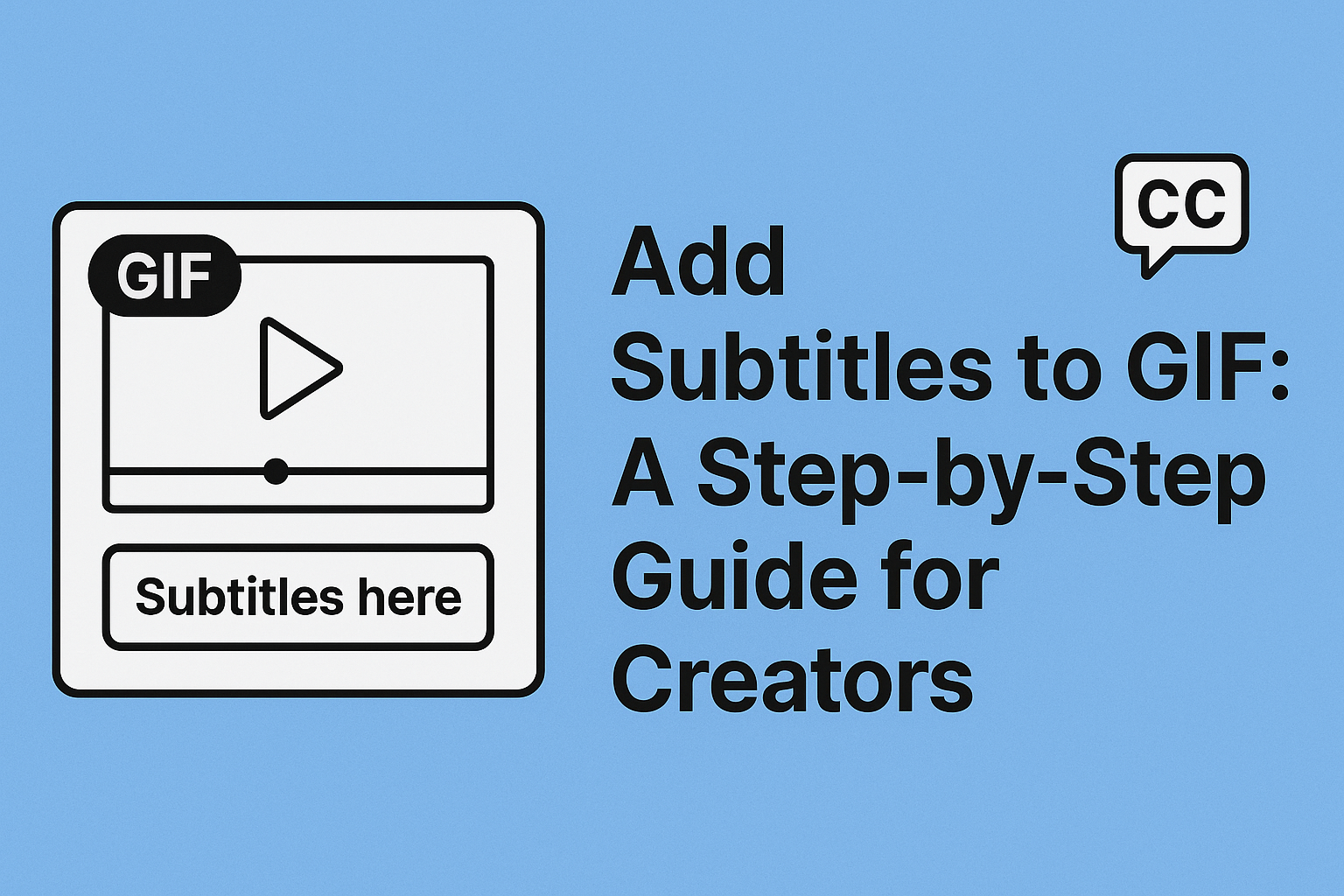
GIFs are a fun and powerful way to express emotions, reactions, and stories without saying a word. They move fast, grab attention, and often speak louder than still images.
Adding subtitles to GIFs makes them even better. Subtitles bring clarity to dialogue, highlight emotions, and make your content more accessible and engaging.
Whether you’re sharing memes, tutorials, or product highlights, subtitles help your message land every time. In this blog, I’ll show you exactly how to add subtitles to any GIF in simple steps.
Why Add Subtitles to a GIF?
Adding subtitles to a GIF makes it more powerful and easier to understand. Subtitles help everyone, including those with hearing challenges or people watching in silent mode. When you add text, viewers instantly understand what’s happening, even without sound. This is great for social media, where most users scroll with their audio off.
Subtitled GIFs also get more engagement, people stay longer, react more, and share them often. On websites, they help improve SEO, too. Search engines can read the alt text and captions, making your GIF easier to find. Subtitles turn a simple loop into a meaningful message, making your content clearer, inclusive, and searchable.
Methods to Add Subtitles to a GIF
1. Using Video-to-GIF Tools with Subtitle Support
- Convert Video Clips with Subtitles into GIFs:
First, select a video clip and add subtitles using video editing software or specialized tools. Once subtitles are embedded, convert the subtitled video into a GIF format, maintaining the subtitle clarity and synchronization. - Automate with Tools like RenderCut:
Utilize tools such as RenderCut that offer built-in support for automatically generating subtitles from speech. These tools enable quick customization of font styles, subtitle positions, and colors, efficiently producing high-quality subtitled GIFs with minimal manual effort.
2. Manual Editing Using GIF Editors
- Import GIF into an Editing Tool:
Open your GIF in popular editing software like Adobe Photoshop, GIPHY, or EZGIF. These platforms provide options for text editing directly onto GIF frames. - Add Text Frames Manually:
Insert text overlays frame-by-frame or across selected frames to display subtitles. Adjust text positioning, duration, and style manually to ensure readability and timing accuracy. - Limitations of Manual Subtitle Insertion:
Note that manual editing is time-consuming, especially for longer GIFs, and precise subtitle timing can be challenging, potentially impacting visual smoothness.
How to Add Subtitles to GIFs Using RenderCut
Adding subtitles to GIFs using RenderCut is quick and simple. Just upload your video or GIF file to the platform. You can either let the AI auto-generate subtitles for you or manually type in your own text.
Once the subtitles appear, you can customize everything, change the font style, pick your favorite colors, and move the text to the perfect position on the screen.
RenderCut also helps you export your final GIF with subtitles in high quality. It keeps your file size optimized, so your GIF loads fast without losing clarity. Whether it’s for fun, memes, or sharing messages visually, RenderCut makes your GIFs look sharp and speak clearly.
Why Use RenderCut to Add Subtitles to GIFs?
RenderCut makes adding subtitles to GIFs fast, easy, and professional. Its AI-powered engine listens to your video or audio and automatically generates accurate subtitles. You don’t need to type a single word.
You can customize the font, style, and position of the subtitles to match your content’s mood and vibe. Once done, RenderCut lets you export the final GIF with perfectly synced subtitles, no delay or mismatch.
The rendering is super quick, and the output is instantly ready to share across socials, chats, or websites. Whether you’re making memes, tutorials, or reactions, RenderCut makes your GIFs look sharp, clean, and high-impact in just a few clicks.
Frequently Asked Questions (FAQs)
Can I add subtitles to existing GIFs?
Yes, you can add subtitles to existing GIFs using tools like On4ts GIF Converter or RenderCut. This helps make your GIFs more engaging and easier to understand, especially on silent autoplay or social media platforms.
Does RenderCut support custom fonts and colors?
Yes, RenderCut supports custom fonts and colors, so you can match your video style perfectly. You can easily choose from multiple fonts, adjust text size, and set your brand colors for subtitles and captions.
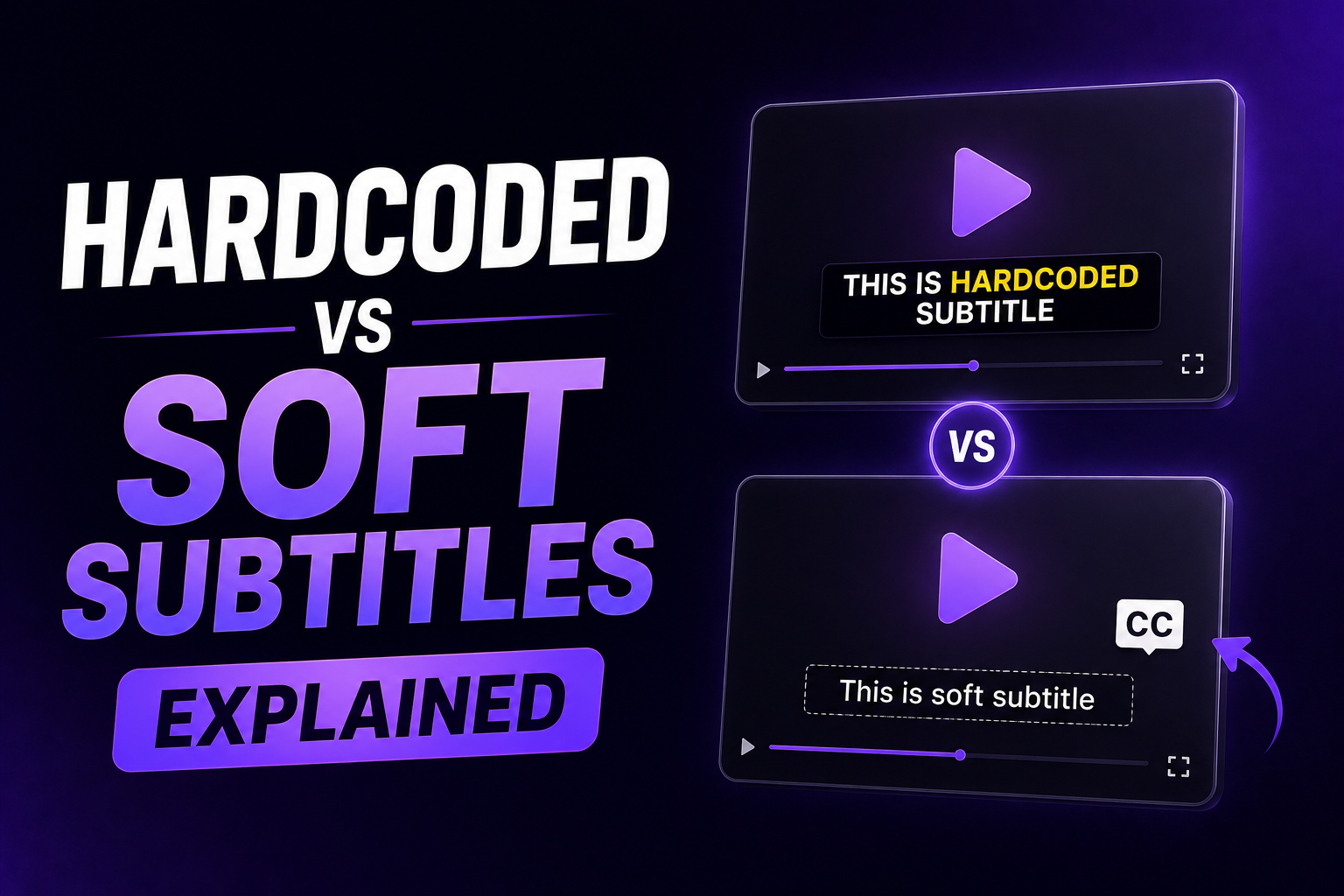
Are the subtitles permanent (hardcoded)?
Yes, the subtitles can be permanent (hardcoded) if you choose to burn them into the video. This means they stay visible on all devices, platforms, and players, just like captions on most viral social media videos.
Can I edit subtitles after exporting?
Yes, you can edit subtitles even after exporting. Most subtitle files like .srt or .vtt are simple text files, so you can easily open and change the text using Notepad or any subtitle editor.
Does RenderCut optimize the final GIF size?
Yes, RenderCut automatically optimizes the final GIF size by compressing it without losing quality, making it faster to load and easier to share. This helps your content stay crisp and smooth across all platforms.
Conclusion
Adding subtitles to GIFs enhances clarity, accessibility, and emotional impact, especially on fast-paced social platforms. Throughout this blog, we explored simple ways to subtitle your GIFs, from manual tools to AI-powered options.
Subtitled GIFs grab attention, convey messages clearly, and reach a wider audience. Start subtitling your GIFs today if you’re a creator aiming for more engaging content. Use RenderCut to add subtitles to your GIFs effortlessly and boost their effectiveness in just minutes. Try it now and make every frame count.