
Add Subtitles To MKV
 RenderCutCreator Tips
Adding subtitles to MKV videos is simple and powerful. The MKV (Matroska Video) format is widely known for its flexibility, supporting multiple audio and subtitle tracks in one file.
When you add subtitles, your videos instantly become more accessible, understandable, and engaging, especially for viewers in noisy places or different language backgrounds. Whether you’re sharing films, tutorials, or content online, subtitles make sure your message is clear. In this guide, I’ll walk you through the easiest ways to add subtitles to your MKV videos.
What is an MKV File?
An MKV file is a multimedia container format that stores video, audio, subtitles, and more, all in one single file. Short for Matroska Video, MKV can hold multiple audio tracks and subtitle files, making it perfect for movies or shows in different languages. It supports high-quality video and can include chapters, menu navigation, and metadata like cover images or ratings.
What makes MKV stand out is its flexibility. Unlike MP4 or AVI, MKV easily handles multiple audio and subtitle streams without needing extra files. It’s widely used for streaming, archiving, and personal collections. You’ll often find MKV files with Blu-ray rips or HD content because of how much it can carry while keeping quality intact.
Common Subtitle Formats Supported by MKV
MKV supports many subtitle formats, making it flexible for different needs. SRT (SubRip Subtitle) is the most popular and widely supported. It’s simple, uses plain text, and works well across devices.
ASS (Advanced SubStation Alpha) allows styled subtitles with fonts, colors, and placement great for anime or detailed visuals. SUB/IDX comes from DVD subtitles and includes both text and image-based subtitles, offering strong language support.
MKV also supports VobSub, PGS (Blu-ray subtitles), and WebVTT. Among all, SRT stands out for its simplicity and maximum compatibility. Whether you watch videos on VLC, mobile, or smart TVs, MKV with these subtitle formats gives you a smooth, clear viewing experience.
Methods to Add Subtitles to MKV Files
1. Using Free Software (HandBrake, MKVToolNix)
Hardcoding Subtitles with HandBrake:
- Download and install HandBrake from the official site.
- Open HandBrake, click “Open Source”, and select your video file.
- Go to the “Subtitles” tab, click “Import Subtitle”, and choose your SRT file.
- Check the “Burn In” option to hardcode subtitles into your video.
- Select desired video settings, then click “Start Encode”.
Softcoding Subtitles with MKVToolNix:
- Download and install MKVToolNix from the official site.
- Open MKVToolNix GUI and click “Add Source Files” to load your video.
- Click “Add Source Files” again to select your subtitle file (SRT).
- Select your subtitle track and ensure the “Default track” box is checked.
- Click “Start multiplexing” to create a new MKV video with soft-coded subtitles.
Pros and Cons of Each Method:
- Hardcoding Subtitles:
- Pros: Guaranteed visibility on all players and devices.
- Cons: Viewers can’t disable subtitles; subtitles are permanent and cannot be adjusted.
- Softcoding Subtitles:
- Pros: Offers viewers control; subtitles can be toggled on/off or changed easily.
- Cons: Potential playback compatibility issues on certain media players or devices.
2. Using Online Tools
- Quick methods for users who prefer not to install software, such as VEED.io or Clideo.
- Limitations:
- File size restrictions.
- Limited subtitle editing and customization options.
3. Using RenderCut to Add Subtitles Automatically
Using RenderCut to add subtitles automatically is fast and simple. Just upload your MKV video, and the AI will instantly detect and transcribe the spoken words into accurate subtitles.
You can customize everything, change the font, adjust the size, move the text around, and even match it to your brand style. Whether you want the subtitles burned directly into the video or saved as a separate sidecar file, RenderCut gives you both options.
It works great for creators, marketers, and editors who want clean, ready-to-share videos without doing everything manually. Everything happens online in a few clicks, so you stay focused on creating, not editing.
Why Use RenderCut for MKV Subtitle Tasks?
RenderCut makes MKV subtitle tasks fast, fun, and effortless. It uses smart AI to auto-generate subtitles in seconds, saving hours of manual typing. You can upload MKV, MP4, or any other video format, it works smoothly with all.
What makes it more exciting is the creative control: add emojis, animated captions, stylish fonts, and even B-roll clips to boost viewer attention. Whether you’re editing YouTube videos, making reels, or building branded content, RenderCut gives you everything in one tool.
Editors love the speed, marketers enjoy the engagement, and content creators save time with every project. It’s all about helping you create professional videos faster and with more style.
Tips for Better Subtitle Integration
Better subtitle integration makes your videos clearer and more engaging. Use a font size that’s easy to read, and place subtitles slightly above the bottom edge so they don’t overlap important visuals. Keep the timing accurate, subtitles should match what’s being said without delay or rush.
Depending on where you’re posting the video, choose between burn-in and soft subtitles. Burn-in works well for social media and ensures everyone sees the text, while soft subtitles give viewers the option to toggle them on or off, especially on platforms like YouTube or Netflix. Clear, well-timed subtitles make your content more professional and easier to enjoy.
Frequently Asked Questions (FAQs)
Can MKV files contain multiple subtitle tracks?
Yes, MKV files can contain multiple subtitle tracks including different languages, formats (like SRT or ASS), and even styled captions. This feature makes MKV popular for movies and shows that support global audiences or accessibility needs.
What’s the difference between soft and hard subtitles?
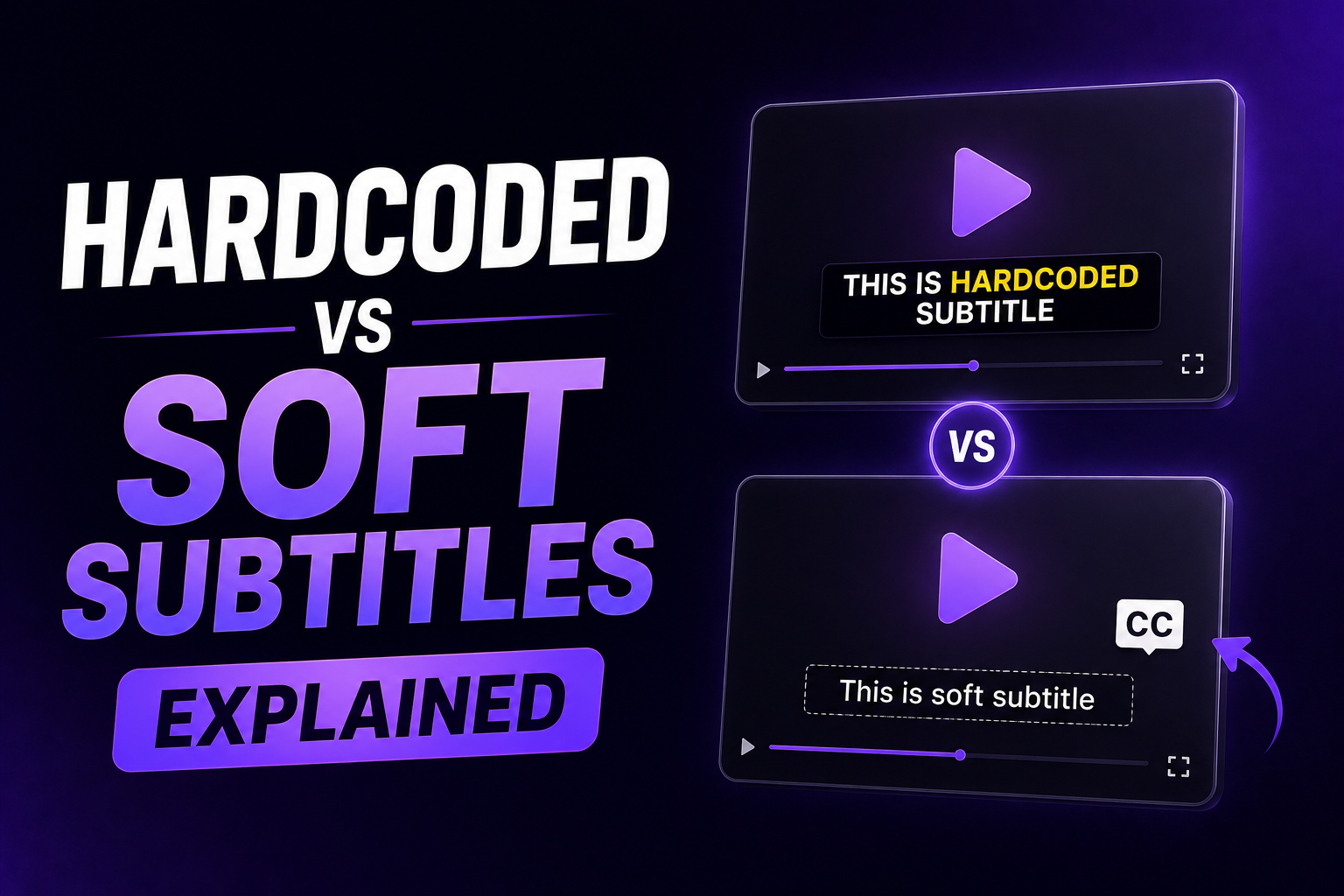
Hard subtitles are permanently added to the video and can’t be turned off, while soft subtitles are separate subtitle files (like .SRT) that you can turn on or off anytime during playback.
Does RenderCut support subtitle customization?
Yes, RenderCut supports full subtitle customization. You can easily change font style, size, color, position, and even control word grouping. Over 90% of users say this helps their videos look more engaging and professional.
Is RenderCut suitable for long-form videos?
Yes, RenderCut is suitable for long-form videos. It supports full-length content with automated subtitles, B-roll, and captions. Many creators use it for YouTube, webinars, and tutorials up to 60 minutes or more.
Can I export videos in formats other than MKV?
Yes, you can export videos in formats other than MKV. Most editors like DaVinci Resolve, Premiere Pro, and Final Cut Pro support popular formats like MP4, MOV, and AVI, depending on your project settings and export preferences.
Conclusion
Adding subtitles to MKV files doesn’t have to be hard. Whether you’re aiming for better accessibility, higher engagement, or global reach, subtitles make your content more powerful.
We’ve covered different ways to add them, but if you want a faster, accurate, and stylish approach, RenderCut is the tool to trust. It lets you generate and embed captions in minutes without hassle or complexity.
Try RenderCut today and transform your MKV videos into high-retention content with bold, clear subtitles.