
Add Subtitles with HandBrake
 RenderCutCreator Tips
Subtitles make your videos more accessible, boost viewer engagement, and help your content reach global audiences. Whether you’re editing a tutorial, vlog, or marketing clip, adding subtitles is a smart move that increases both clarity and watch time.
In this guide, I’ll show you how to add subtitles using HandBrake, a free, open-source video tool trusted by creators, editors, and marketers worldwide. If you want a fast, reliable way to enhance your videos with captions, HandBrake makes the process simple and efficient.
What is HandBrake?
HandBrake is a free and open-source video transcoder that helps you convert videos from one format to another. It works smoothly on Windows, macOS, and Linux, making it easy for anyone to use.
People love using HandBrake to compress large video files without losing quality. It also supports adding and editing subtitles, including SRT, SSA, and VobSub files. You can burn subtitles directly into the video or keep them as separate tracks.
This makes HandBrake perfect for creating content with captions for movies, tutorials, or social media. Its clean layout and useful tools make video editing feel simple and fast, even if you’re just getting started.
Supported Subtitle Formats in HandBrake
HandBrake supports popular subtitle formats like SRT, SSA, and ASS, making it easy to add captions to your videos. SRT is the simplest format, widely used for basic subtitles without styling. SSA and ASS are more advanced, letting you include custom fonts, positions, and effects.
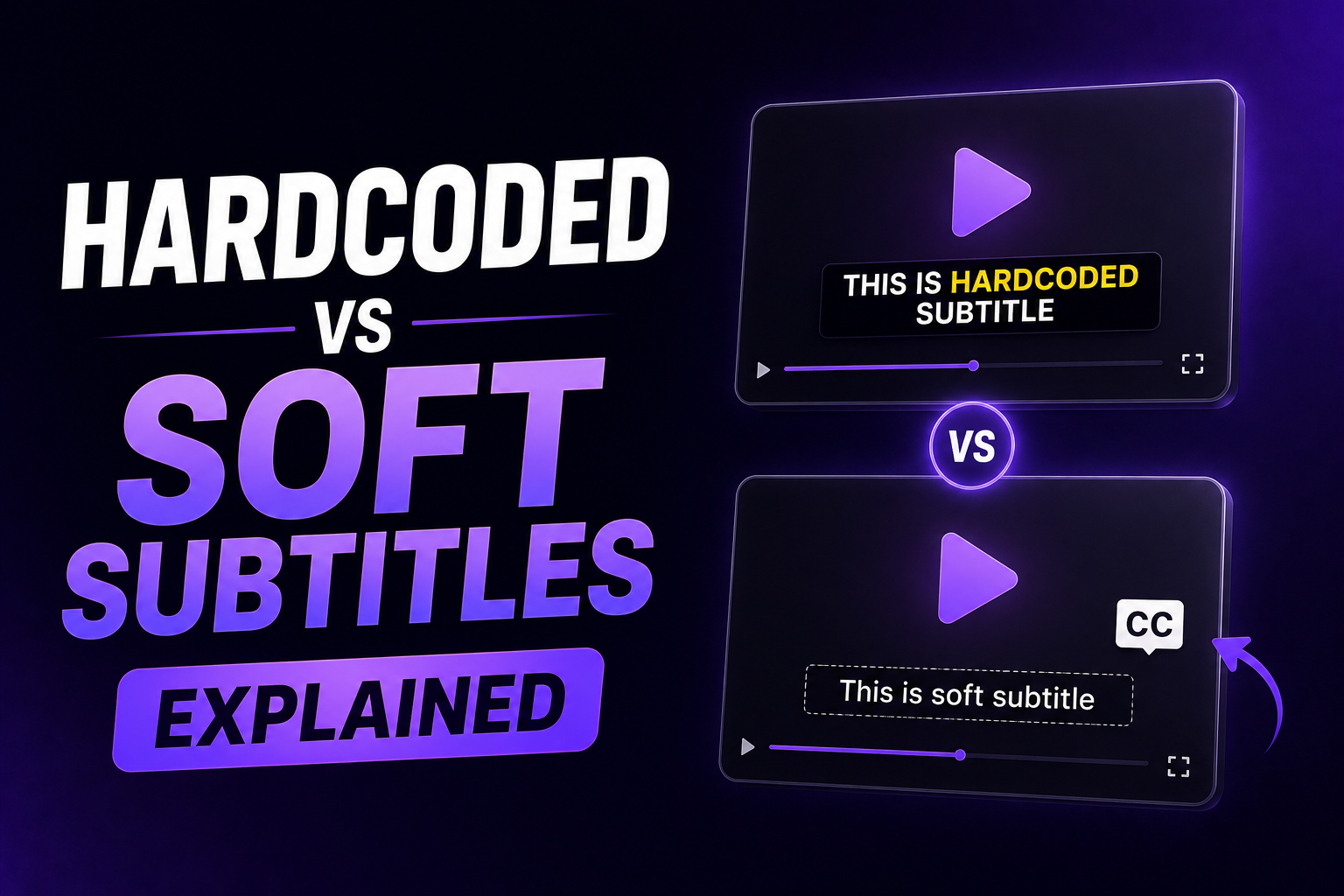
You can choose between soft subtitles, which can be turned on or off while watching, and hardcoded subtitles, which are permanently burned into the video. If you want full control or support across devices, soft subtitles work best. If you want the text to always appear no matter where it’s played, go for hardcoded.
HandBrake gives you the freedom to pick what fits your video needs.
Preparing Your Subtitle File
Creating your subtitle file is the first step to make your video more engaging and easier to understand. You can either write an SRT file manually using a plain text editor or generate one with subtitle tools.
Each subtitle line should include proper timestamps to match the audio. Always use the correct filename and keep the format clean, so the video player can recognize it. Accurate timing is key; every subtitle must appear at the right moment.
If you’re short on time, tools like RenderCut can automatically create perfectly timed SRT files for your videos in seconds. Whether you’re adding captions for YouTube, QuickTime, or other platforms, a well-prepared subtitle file makes a big difference.
Step-by-Step Guide to Adding Subtitles in HandBrake
Follow these clear, simple steps to add subtitles using HandBrake:
Step 1: Download and Install HandBrake
- Visit the official HandBrake website and download the latest version for your operating system.
- Run the installer and follow on-screen instructions to complete installation.
Step 2: Import Your Video File
- Open HandBrake.
- Click “Open Source”, then select the video file from your device.
Step 3: Navigate to the ‘Subtitles’ Tab
- After loading your video, find and click the “Subtitles” tab located below the video preview area.
Step 4: Add Your Subtitle File (e.g., SRT)
- Click “Import Subtitle”, then select your subtitle file (.srt) from your computer.
- HandBrake will list the subtitles you’ve just imported.
Step 5: Choose Burned-In or Soft Subtitles
- Check “Burn In” if you want subtitles permanently embedded (visible at all times).
- Leave unchecked for soft subtitles, allowing viewers to toggle subtitles on or off.
Step 6: Start Encoding and Save the Final Video
- Choose your output destination by clicking “Browse” at the bottom-right.
- Click “Start Encode” at the top to begin processing your video.
- HandBrake will encode your video with subtitles, ready for viewing once completed.
When to Use RenderCut Instead of Manual Tools
Use RenderCut when you want to save time and effort on video editing. Manual tools like HandBrake work well for basic tasks but become slow when you edit subtitles, style videos, or export in bulk.
RenderCut makes the process smoother by automating subtitle generation, adding bold styles, and exporting your final video all in one place. You don’t need to switch tools or handle every step manually. Everything is fast, clean, and done in seconds.
Comparison Table: RenderCut vs HandBrake
| Feature | RenderCut (Automated) | HandBrake (Manual) |
|---|---|---|
| Subtitle Generation | Auto with styling | Requires external files |
| Bulk Video Editing | Yes, all at once | One-by-one only |
| Visual Enhancements | Captions, GIFs, B-Roll | None |
| Export & Final Output | Ready in a few clicks | Manual steps required |
Best Practices for Subtitle Integration
Subtitles work best when they are clear, easy to read, and well-placed. Always use a large enough font size that stands out against any background. Keep the placement at the bottom of the screen without blocking key visuals.
Use simple, inclusive language that everyone can understand, including people with hearing differences or non-native speakers. Avoid long sentences; break them into short lines for better focus. Before you finish your video, watch it fully with subtitles on.
This helps you spot any timing errors or misalignment. Small changes in placement or timing can improve the viewer’s experience. Subtitles should feel like a natural part of the video, not something added later.
FAQs
Can HandBrake embed subtitles permanently?
Yes, HandBrake can embed subtitles permanently by using the “Burn In” option during export. This means the subtitles become a part of the video itself, and they’ll always appear while playing—great for compatibility across all devices.
What’s the difference between soft and burned-in subtitles?
Soft subtitles can be turned on or off in the video player, while burned-in subtitles are always visible because they are permanently added to the video. Most streaming sites prefer soft subtitles for easy language switching.
Why is my subtitle file not syncing correctly?
Subtitle files may not sync correctly if their timecodes don’t match the video’s actual audio. This often happens due to frame rate differences, editing cuts, or slight delays during export. Even a 0.5-second gap affects clarity.
Can I use HandBrake for multiple videos at once?
Yes, HandBrake lets you convert multiple videos at once using its batch encoding feature. You can queue files or select a whole folder to save time. Many creators use it daily to process large video libraries.
How does RenderCut help speed up subtitle workflows?
RenderCut speeds up subtitle workflows by automatically syncing captions to your video in seconds. It uses smart AI to detect speech, group words naturally, and let you style subtitles fast, saving hours of manual work.
Conclusion
Adding subtitles with HandBrake helps make videos more accessible, but the process can be slow and lacks visual styling. You’ve seen how HandBrake supports SRT and embedded tracks, but it’s still manual and basic. If you’re creating multiple videos or want captions that pop—bold, animated, timed right—RenderCut is built for you. No more dragging files or syncing by hand.
Try RenderCut to subtitle your next 10 videos in minutes—no manual effort needed.
Let your content speak louder, faster, and smarter.