
How to Auto-Generate Subtitles for a Video in MX Player?
 RenderCutCreator Tips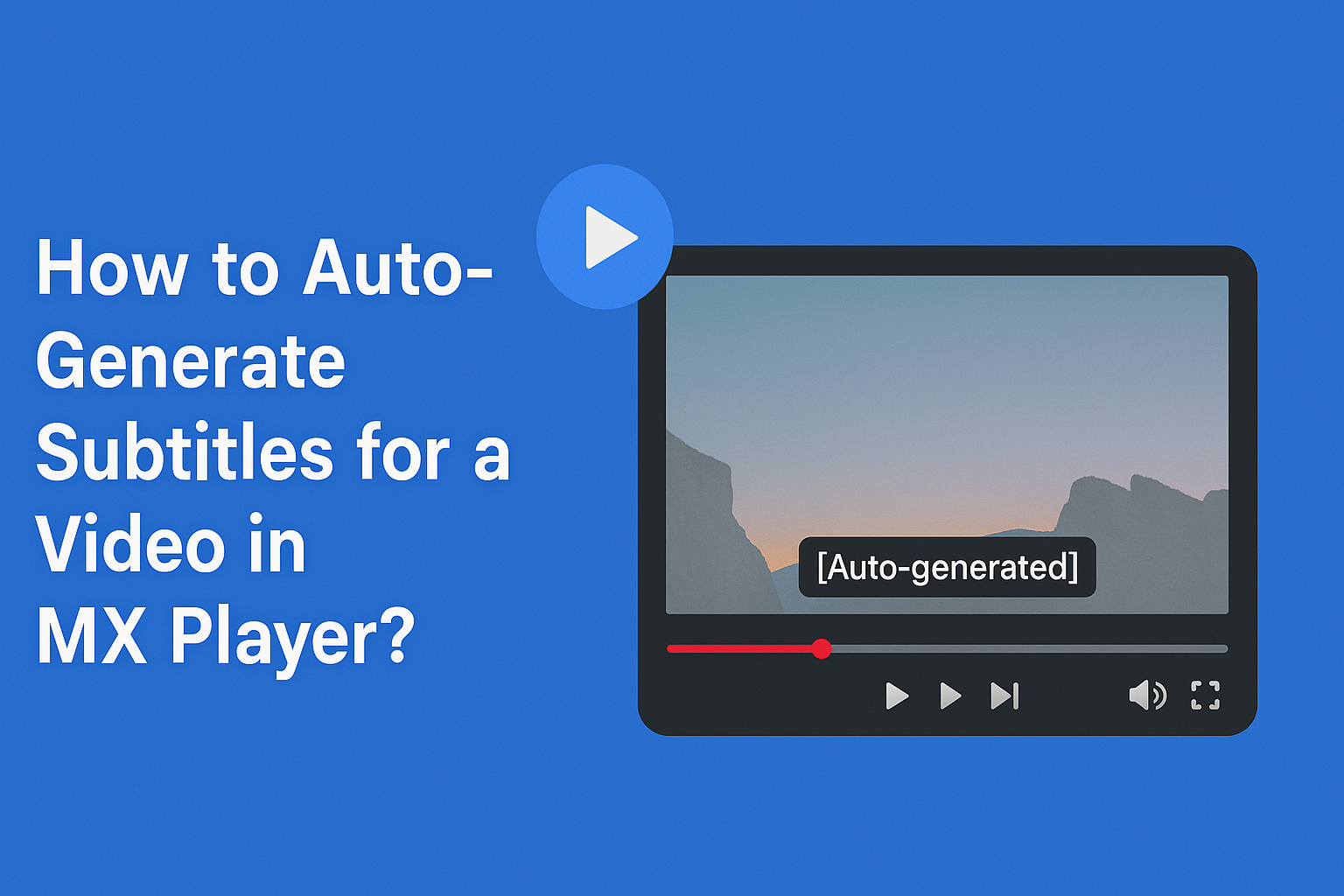
Subtitles are crucial in making videos accessible to a wider audience, enhancing engagement, and improving viewer retention. For video creators, auto-generated subtitles can save time and effort while ensuring content reaches viewers in various languages.
MX Player, a popular media player, offers convenient subtitle features that make it easy to add captions to videos. With its user-friendly interface and reliable auto-generation tools, MX Player helps streamline the process, allowing creators to focus on what matters most: producing great content.
What is MX Player and Why Use It for Subtitles?
MX Player is a powerful media player known for playing almost any video or audio format smoothly. It works on Android, iOS, and web platforms, offering features like gesture controls, hardware acceleration, and subtitle support.
People love it for its clean design and smooth performance. Subtitles in MX Player make videos easier to understand for everyone. Whether someone is watching in a noisy place, learning a new language, or has hearing difficulties, subtitles help keep them engaged.
MX Player allows users to load, sync, and customize subtitle files in many formats like .srt, .sub, or .ass. This makes watching movies, shows, or lectures more enjoyable and accessible to all types of viewers.
How to Auto-Generate Subtitles in MX Player
A. Step-by-Step Guide to Auto-Generate Subtitles
1. Opening a Video in MX Player
Open MX Player and browse your device to select the video you want to watch. Tap to play it in the built-in media player.
2. Enabling Subtitle Generation (Auto-Generation Settings)
MX Player does not generate subtitles natively. You must first use an external tool like RenderCut to auto-generate subtitles (in SRT or VTT format). Then:
- Tap the three-dot menu on the top-right
Select Subtitles > Open
Choose the subtitle file downloaded from RenderCut
3. Customizing Subtitle Preferences (Language, Font Size, Style)
Go to:
- Settings > Subtitle
Adjust font size, color, background, and text style
Change encoding if subtitle text isn’t displaying properly
Choose subtitle language if multiple tracks are available
B. Troubleshooting Common Issues with Subtitle Generation
1. Fixing Subtitle Sync Issues
If subtitles appear before or after the dialogue:
- Tap the three-dot menu while playing the video
Go to Subtitles > Sync
Use + or – delay controls to align subtitles with the audio accurately
2. Adjusting Subtitle Settings for Clarity
To improve readability of subtitles:
- Open Settings > Subtitle
Increase font size, enable background box, or change font color
Use shadow effect for better visibility on bright or dynamic scenes
3. Handling Unsupported Languages or Audio Quality Issues
If subtitles are not generating correctly:
- Make sure the video language is supported by your subtitle generator tool
- Use RenderCut for better accuracy with multilingual audio
- Avoid low-volume, noisy, or overlapping dialogues as they reduce subtitle accuracy
- Re-upload a cleaner audio version if possible for improved results
Let me know if you need a list of supported subtitle languages or enhancement tools.
Benefits of Using Auto-Generated Subtitles in MX Player
- Auto-generated subtitles in MX Player improve video accessibility, enhance viewer comprehension, and support content discovery.
- Additionally, they help non-native speakers follow dialogues easily, especially in fast-paced or foreign language videos.
- Furthermore, subtitles improve engagement on mute playback, a common behavior on mobile.
- MX Player supports subtitle formats like SRT and VTT, making it easy to add and edit auto-generated captions.
- Auto-subtitles also assist in indexing for better SEO when shared or embedded, leading to improved discoverability.
- They are especially useful for educational content, tutorials, and multilingual audiences.
- Using tools like RenderCut to generate accurate subtitles can make the editing process faster and smoother.
Integrating Auto-Generated Subtitles with RenderCut for Video Editing
Integrating auto-generated subtitles with RenderCut makes your video editing smooth and efficient. If you’ve created subtitles in MX Player, simply export the subtitle file (usually in .srt format) and upload it into RenderCut. Once added, RenderCut instantly syncs the subtitles with your video timeline.
You can then use RenderCut’s tools to style, correct, or adjust the timing of any subtitle. It’s easy to drag subtitle layers, fix word splits, or enhance them with animated captions for more impact. Every edit happens in real-time, so you see the changes instantly.
Finally, export your video with perfectly synced subtitles, ready to post or share—no extra steps, no manual syncing, just clean results.
Best Practices for Subtitle Customization and Optimization
Customizing subtitles the right way helps your video reach more people and feel more professional. Start by picking the right format. SRT is great for most platforms like YouTube, while VTT works better for websites that need styling, like color or placement.
Once added, always check your subtitles for spelling, timing, and grammar. Make sure every sentence is short, clear, and matches the speaker’s pace. RenderCut makes this super easy with tools to auto-generate subtitles, adjust timings, and add animations that improve viewer focus.
You can also edit the subtitles directly inside RenderCut’s editor to make sure everything looks perfect and feels natural for every viewer.
FAQs About Auto-Generating Subtitles in MX Player
Can I edit auto-generated subtitles in MX Player?
Yes, you can edit auto-generated subtitles in MX Player by using external subtitle editor apps or by opening the subtitle file (.srt) in a text editor. MX Player supports synced subtitle playback, making adjustments easy and smooth.
How accurate are the auto-generated subtitles in MX Player?
Auto-generated subtitles in MX Player are fairly accurate for most videos, especially those in clear English or Hindi. They work well for casual watching, capturing 80–90% of spoken content correctly in many cases.
Can I generate subtitles for multiple languages in MX Player?
Yes, you can generate subtitles for multiple languages in MX Player by downloading the right subtitle files. MX Player supports various formats like SRT, SSA, and SUB, making it easy to enjoy videos in your preferred language.
Does MX Player support subtitles for all video formats?
Yes, MX Player supports subtitles for most popular video formats like MP4, MKV, AVI, and MOV. It works well with common subtitle files such as SRT, SSA, and SUB, making it easy to enjoy videos with captions.
How can RenderCut enhance my subtitle editing experience?
RenderCut enhances your subtitle editing experience by automatically syncing subtitles with speech, adding animated captions, and letting you customize fonts, colors, and emojis, making videos more engaging and easier to watch.
Conclusion
Auto-generating subtitles in MX Player is a simple yet effective way to make your videos more accessible and engaging. By following the easy steps outlined in this guide, you can ensure that your content reaches a wider audience.
When paired with RenderCut, you can take subtitle management to the next level, offering precise editing and customization for an even more professional output. Explore RenderCut today to streamline your video editing process and enhance your subtitle experience. Don’t just create videos, elevate them!