
Best CapCut Alternatives for Auto Captions
 RenderCutCreator Tips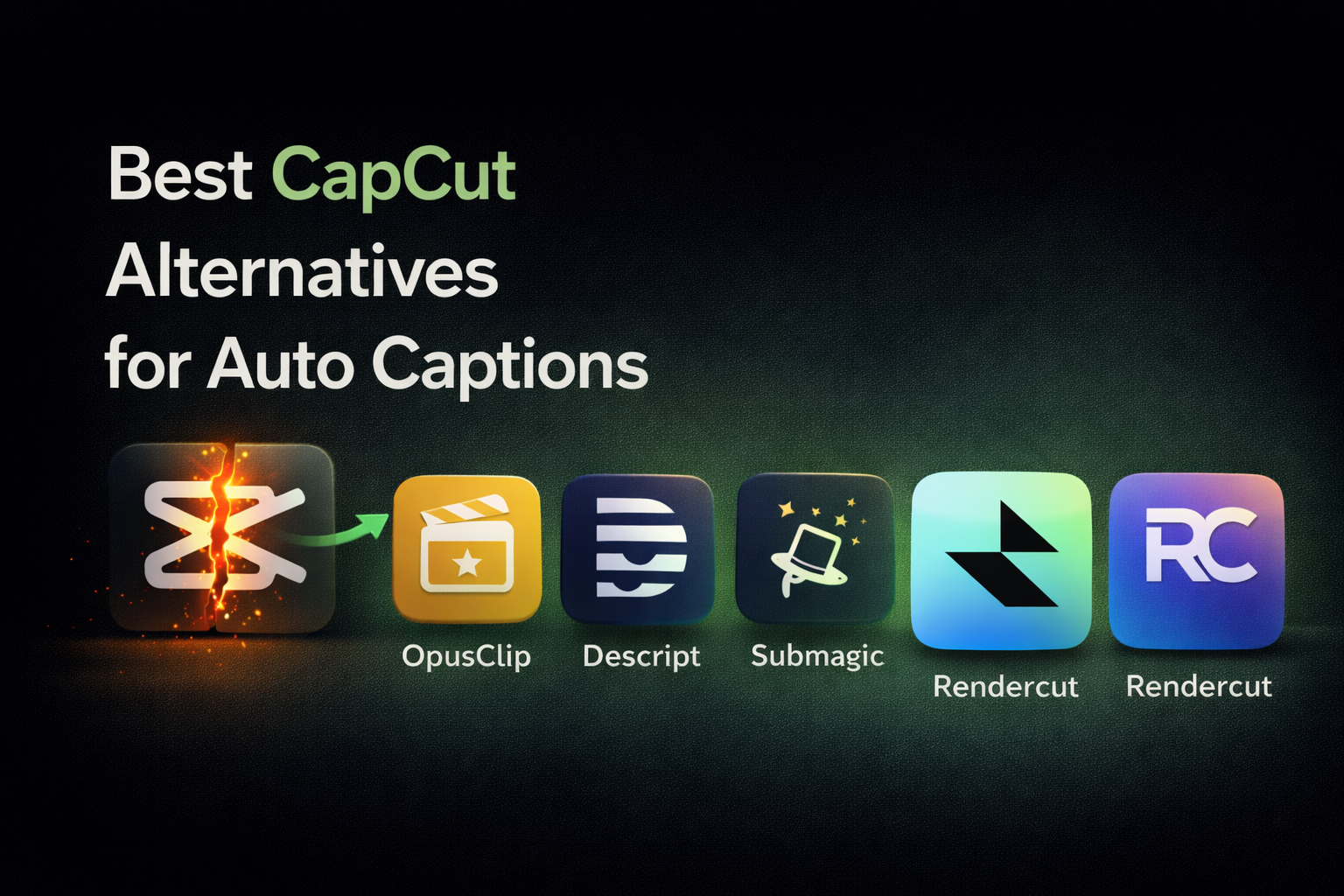
CapCut used to be the go-to tool for adding captions to reels and shorts. It was free, fast, and had enough styling options to get the job done.
That story has changed. More features are now locked behind CapCut Pro. Captions have basic styling compared to what creators actually need. The editing workflow takes longer than it should. And exports sometimes include quality drops or watermarks depending on which features you used.
Creators, agencies, and brands are actively switching. The question is not whether to move, but which alternative actually fits your workflow.
This guide breaks down the four strongest CapCut alternatives for auto captions in 2026. You will see a feature-by-feature comparison, honest pros and cons for each tool, pricing, and a clear decision framework to pick the right one based on how you work.
Tools compared in this guide:
- RenderCut (best for styling control and speed)
- Opus Clip (best for repurposing long videos)
- Submagic (best for automation with B-rolls)
- VEED (best for all-in-one browser editing)
1. Why Users Are Leaving CapCut for Captions
CapCut is still a capable tool. The reason creators are switching has less to do with what CapCut does wrong and more to do with what captioning tools can now do better.
The 5 most common reasons creators switch away from CapCut:
- Features moving behind paywalls. Caption effects, premium templates, and export options that used to be free now require a Pro subscription. For creators already running on tight margins, stacking another monthly fee on top of other tools is a tough sell.
- Basic caption styling compared to dedicated tools. CapCut offers solid caption templates, but the word-level control, highlight colors, and animation options available in purpose-built captioning apps are noticeably more advanced.
- Slow editing workflow at scale. The timeline-based interface works fine for a single video. For creators producing 20 to 50 reels per week, every extra click adds up fast.
- Inconsistent export quality. Some users report quality drops, especially on longer videos or when certain effects are applied. For brand content and ad creatives, that is a dealbreaker.
- No batch processing. CapCut is designed for one video at a time. Tools built around automation and batch workflows save hours per week for high-volume creators.
If any of these match your situation, the alternatives below are worth a serious look.
2. What to Look for in a CapCut Alternative
Before comparing specific tools, it helps to know what separates a good captioning tool from a great one. These are the features that actually matter at scale.
- Transcription speed. How fast does the tool generate captions from raw audio? Seconds is good. Minutes is a problem when you are processing multiple videos.
- Styling control. Can you adjust font, color, size, and background per line or per word? Word-level control is where most tools fall short.
- Timing accuracy. Auto-synced captions should land with the speaker’s rhythm, not just the audio timestamps. Good tools let you fine-tune timing without rebuilding the file.
- Clean export without watermarks. Free plans with watermarks are fine for testing. For publishing, you need watermark-free output on your actual working plan.
- Automation and presets. Saved templates, one-click style applications, and bulk processing turn caption work from hours into minutes.
- Platform-ready output. Export formats optimized for Instagram Reels, YouTube Shorts, TikTok, and ad platforms without manual resizing.
With those criteria in mind, here is how the top alternatives stack up.
3. Best CapCut Alternatives for Auto Captions
3.1 RenderCut
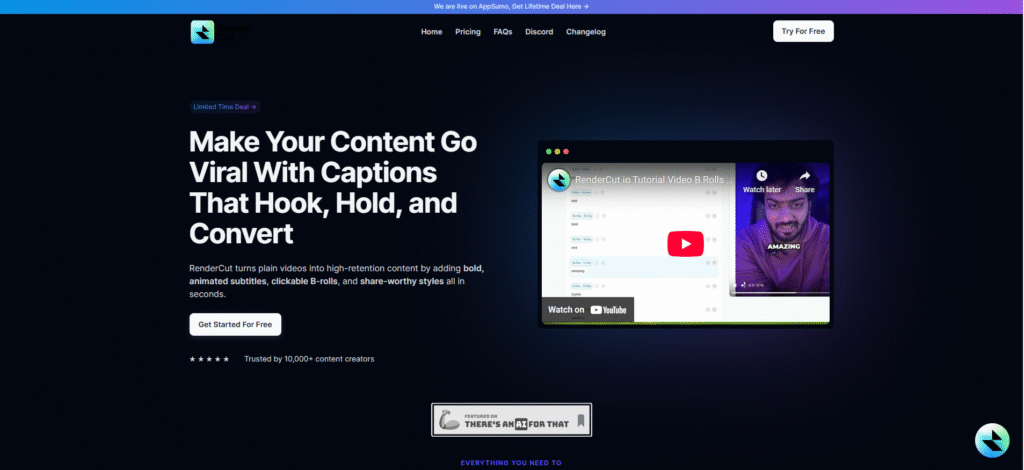
RenderCut is a dedicated AI captioning tool built specifically for short-form video. Instead of trying to do everything (video editing, effects, music, captions), it focuses on one job and executes it at a much deeper level than general-purpose tools.
Best for: Creators and agencies who need fast, highly styled captions with word-level control and a lifetime pricing option.
Key features:
- Fast AI auto-captioning with high accuracy across accents and languages
- Full styling control: font, color, size, background, animation per word or per line
- Auto B-rolls and emoji placement
- Saveable style templates for batch work
- AI Hook Title generation for the first caption line
- Clean export with no watermark on paid plans
- Available as a lifetime deal on AppSumo (no monthly fees)
Pricing: Free plan includes 5 videos. Paid plans scale with usage. Lifetime deal currently available on AppSumo starting at $49.
Watch the full workflow in action with the complete system explained in How We Increased Reel Watch Time by 42% Using AI Captions.
3.2 Opus Clip
Opus Clip is built around a different use case: turning long videos (podcasts, webinars, interviews) into short-form clips automatically. Captions are part of the output, but the core value is in the AI-driven clipping, not the caption quality.
Best for: Podcasters, webinar hosts, and creators repurposing long-form content into shorts.
Key features:
- AI clips long videos into multiple short-form pieces
- Virality scoring for each generated clip
- Auto-reframing for vertical format
- Animated caption templates
- Direct social publishing integrations
Pricing: Free plan with 60 monthly credits (watermarked). Starter at $15/month. Pro plan runs higher for advanced features. Credit-based pricing that can get expensive for high-volume use.
Trade-off: Less control over caption styling compared to dedicated caption tools. The focus is on clipping speed, not caption design.
3.3 Submagic
Submagic has built a strong reputation on automation depth. Their AI Auto-Edit feature handles captioning, trimming silences, and adding B-rolls in a single click.
Best for: Agencies and teams who want hands-off automation and are willing to pay for it.
Key features:
- AI Auto-Edit combines captions, trimming, and B-roll in one step
- High transcription accuracy across 48+ languages
- Dynamic caption templates
- Brand kit and API access on higher tiers
- Team collaboration features
Pricing: Starter around $14 to $20/month (15 to 20 videos). Pro at $23/month. Business at $41/month. Watermark on free trial.
Trade-off: Monthly subscription model can stack up, especially on higher tiers needed for full feature access. Less flexibility on styling compared to caption-first tools.
3.4 VEED
VEED is an all-in-one browser-based video editor with captioning as one of many features. If you need general video editing plus captions, VEED covers both.
Best for: Creators who want a single tool for editing, captions, and basic AI features in one browser interface.
Key features:
- Auto-subtitles in 125+ languages
- Full timeline video editor
- AI tools: filler word removal, silence removal, Magic B-roll
- Cloud-based, works on any device
- Stock media library included
Pricing: Lite plan at $12/month. Pro at $24/month (annual). Free plan includes a watermark.
Trade-off: Captioning is solid but not specialized. Caption styling options are more limited than dedicated caption tools. Some users report occasional glitches and export delays.
4. Feature Comparison Table
Here is how the four tools compare side by side on the features that matter most for caption-focused workflows.
| Feature | RenderCut | Opus Clip | Submagic | VEED |
|---|---|---|---|---|
| Caption speed | Fast | Fast | Fast | Medium |
| Styling control | Advanced | Basic | Good | Basic |
| Word-level highlights | Yes | Limited | Yes | Limited |
| Batch processing | Yes (templates) | Yes (bulk clips) | Yes | Limited |
| Saveable style templates | Yes | Yes | Yes | Yes |
| Auto B-rolls | Yes | Yes | Yes | Yes |
| Long-video clipping | No | Yes | Yes | No |
| Lifetime deal | Yes (AppSumo) | No | No | No |
| Entry price | Free / $49 lifetime | Free / $15/mo | $14 to $20/mo | $12/mo |
| Watermark on free plan | No | Yes | Yes | Yes |
Notice that no single tool wins on every row. The right choice depends on what you prioritize and what your content workflow actually looks like.
5. Pros and Cons of Each Tool
A feature comparison only tells part of the story. Here is the honest pros and cons breakdown based on how these tools perform in real use.
| Tool | Pros | Cons |
|---|---|---|
| RenderCut | Deep styling control, word-level highlights, lifetime pricing option, no subscription required, fast export | Focused on captions (not full video editing or long-video clipping) |
| Opus Clip | Best-in-class long-video to shorts conversion, virality scoring, social publishing built in | Credit-based pricing gets expensive fast, caption styling is basic, user complaints about processing failures |
| Submagic | Strong AI Auto-Edit, accurate transcription, good for agency use with team features | Higher-tier features locked behind more expensive plans, subscription-only model, less styling flexibility |
| VEED | All-in-one browser editor, works on any device, large language support | Caption styling limited compared to specialists, some reported glitches, watermark on free tier |
For a deeper look at why basic captions do not produce results regardless of which tool generates them, see Why Most Video Captions Don’t Increase Views (And How to Fix It).
6. Which Tool Should You Choose
The best tool depends on what you actually need the caption workflow to do. Here is a simple decision framework based on use case.
| Your Situation | Best Tool | Why |
|---|---|---|
| Starting out, simple editing needs | CapCut (stay) | Free basics are still solid for beginners |
| Want speed, styling, no monthly fees | RenderCut | Lifetime deal, deepest styling control, purpose-built for captions |
| Repurposing podcasts or long videos | Opus Clip | AI clipping from long content is the core strength |
| Agency running high-volume with team | Submagic | Best AI Auto-Edit automation and team features |
| Need captions plus general video editing | VEED | All-in-one browser editor with captions built in |
| Professional output, consistent branding | RenderCut or Submagic | Word-level control and saveable templates |
If captions are your primary need and you want to avoid ongoing subscription costs, RenderCut is the strongest match. If your workflow revolves around turning long videos into clips, Opus Clip is built exactly for that. For agencies with deep automation needs, Submagic is worth the higher monthly cost. And if you want one tool to handle both editing and captions in a browser, VEED covers both bases.
7. Step-by-Step Caption Workflow Using RenderCut
Once you pick the right tool, the workflow itself is what saves time. Here is the exact process using RenderCut as an example.
- Upload your raw video. Drag and drop the file into RenderCut. No installation required. Works in any browser.
- Generate AI captions. The tool auto-transcribes the audio in seconds. Accuracy holds across accents, languages, and content types.
- Apply your style template. If this is your first video, build your template once: choose font, color, highlight style, placement. Save it. For every future video, one click applies the whole look.
- Chunk and highlight. Split long lines into 3 to 5 word segments. Highlight the key word in each chunk. This is the step that turns ordinary captions into retention drivers.
- Fine-tune timing. Review the video and adjust caption timing to match speech rhythm. The tool lets you drag captions on the timeline for exact placement.
- Export clean. Render the video with hardcoded captions. No watermark on paid plans. Platform-ready output for Reels, Shorts, TikTok, or ads.
For creators handling 20+ videos per week, this entire process can run in batch mode. The full batch workflow is covered in How to Caption 30 Videos a Week Without Burning Out.
Frequently Asked Questions
What is the best alternative to CapCut for captions?
The best alternative depends on your workflow. For deep styling control and a lifetime pricing option, RenderCut is the top pick. For clipping long videos into shorts, Opus Clip is built specifically for that. For agency automation, Submagic offers the strongest AI Auto-Edit. For all-in-one browser editing, VEED covers both captions and general editing.
Why are people switching from CapCut?
Creators switch from CapCut because more features are moving behind paywalls, caption styling is basic compared to dedicated tools, workflows slow down at high volume, and batch processing is limited. Purpose-built captioning tools now offer deeper control and faster workflows.
Which tool is best for auto captions with styling control?
RenderCut offers the most advanced styling control among the tools compared here, with word-level highlights, saveable templates, and animation options. It is built specifically for caption work, unlike all-in-one editors that treat captions as one feature among many.
Is there a CapCut alternative with a one-time payment?
Yes. RenderCut is currently available as a lifetime deal on AppSumo starting at $49. Most other tools on this list use monthly or credit-based subscription models, which cost more over time for consistent use.
Can I use multiple captioning tools together?
Yes. Many creators use Opus Clip for turning long videos into short clips, then move those clips into RenderCut or Submagic for the final caption styling. This workflow combines the strengths of each tool without paying full price for features you only need occasionally.
Final Word
CapCut is not broken. It is just no longer the only option, and for serious creators, it may not be the best option anymore.
The four alternatives covered in this guide each solve a different problem. RenderCut is built for creators who want the deepest caption styling control without monthly fees. Opus Clip excels at turning long content into clips. Submagic automates the full editing process for teams. VEED gives you a complete browser-based editor with captions included.
The right choice comes down to three questions: How many videos do you produce per week, how much styling control do you need, and how do you prefer to pay (subscription vs lifetime)? Answer those honestly and one of the four tools above will be a clear match.
If captions are your main focus and you want to stop paying monthly fees for a feature you use every day, RenderCut is the strongest match in this lineup. Upload, caption, style, and export without switching between multiple apps, and lock in lifetime access before the deal closes.
Try RenderCut free and see the difference styling control makes on your next video.
References
- G2 – User reviews and feature comparisons for video captioning tools
- AppSumo – RenderCut lifetime deal and verified user reviews
- Trustpilot – User ratings and complaint trends for Opus Clip and competitors
- Submagic – Official pricing and feature documentation
- VEED – Official pricing and plan comparison