
How to Add Subtitles in Final Cut Pro (Step-by-Step Guide)
 RenderCutCreator Tips
Subtitles make your videos more accessible, engaging, and SEO-friendly, helping you reach a wider audience with every upload. Adding subtitles is now essential in modern content creation, whether for clarity, inclusivity, or boosting watch time.
Final Cut Pro offers a powerful set of tools for seamlessly adding and customizing subtitles within your video timeline. In this step-by-step guide, I’ll walk you through how to do it efficiently using Final Cut Pro so your videos not only look professional but also connect better with every viewer.
Add Subtitles in Final Cut Pro (Step-by-Step)
Adding subtitles in Final Cut Pro is easy and supports formats like SRT, ITT, and SCC, making it flexible for different platforms. You can import these files or create them directly in your timeline.
Subtitles help viewers understand your video, especially in noisy environments or other languages. Final Cut Pro lets you add both captions (for accessibility, including sound cues) and subtitles (only spoken words).
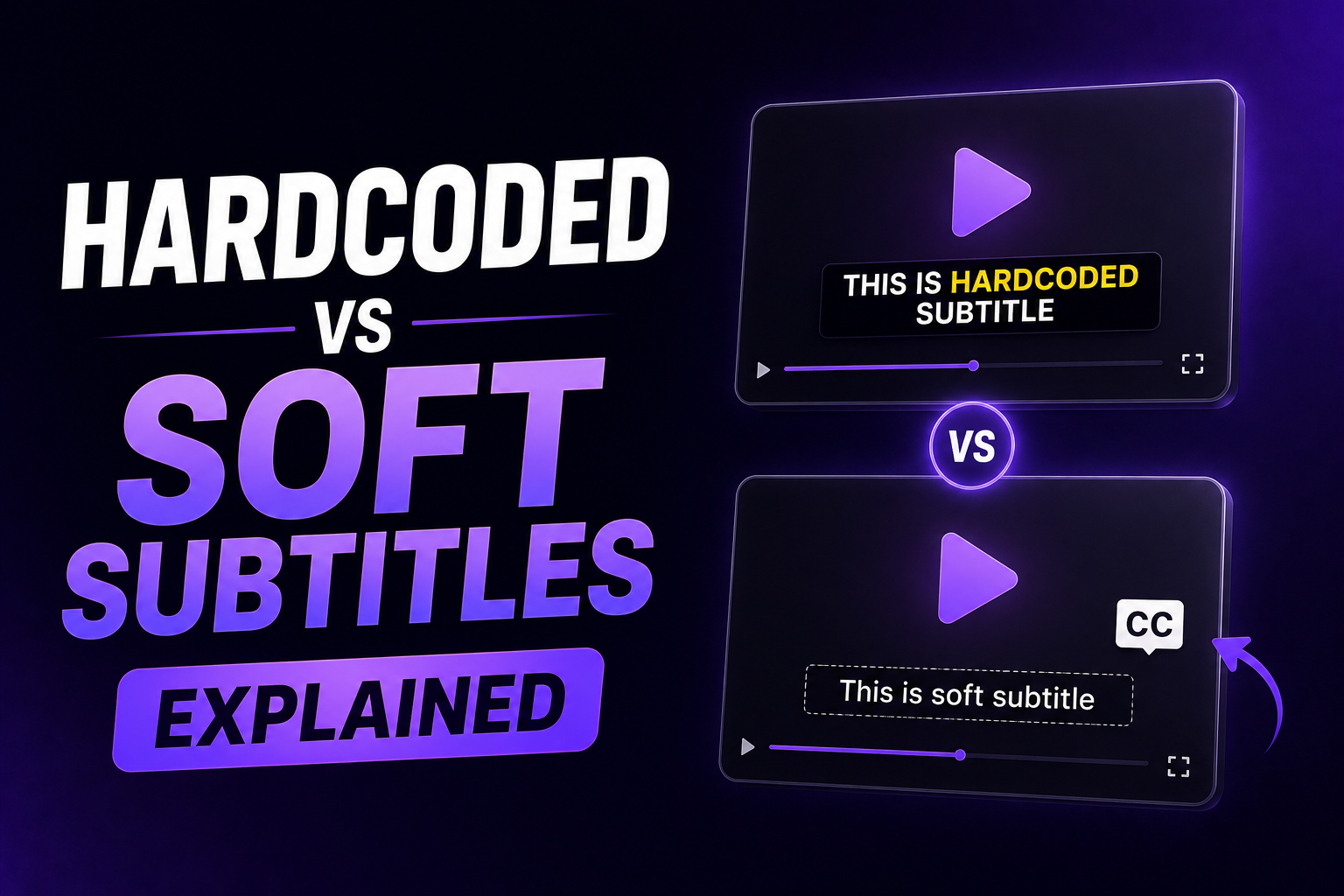
You can choose between burned-in subtitles, which are permanently visible on the video, or sidecar files, which can be turned on or off by the viewer. Burned-in is great for social clips, while sidecar is better for platforms like YouTube or broadcast.
1. Preparing Your Subtitle File
- Creating an SRT file manually: Step-by-step instructions on writing subtitles using basic text editors like Notepad or TextEdit.
- Common formatting issues to avoid: Highlight frequent mistakes, such as incorrect timestamps and special character misplacements.
- Using subtitle tools: Introduction to RenderCut, showcasing how quickly it can auto-generate accurate subtitles, enhancing workflow efficiency.
2. Importing Subtitles into Final Cut Pro
- Importing SRT or ITT files: Clear, actionable steps to import subtitles directly into your project timeline.
- Adjusting timing and synchronization: Simple methods to ensure subtitle alignment matches perfectly with your video’s audio.
- Previewing subtitles: How to review and make sure your subtitles appear correctly before finalizing your video.
3. Editing and Customizing Subtitles
- Customization options: Guide to altering font types, sizes, positions, and subtitle styles to maintain brand consistency or enhance readability.
- Managing multiple languages: Instructions for efficiently handling multilingual subtitle tracks.
- Working with subtitle roles: Using Final Cut Pro’s timeline features effectively to manage and switch between multiple subtitle sets.
4. Exporting Videos with Subtitles
- Embedded subtitles (burned-in): How to export videos that display subtitles permanently.
- Exporting with sidecar files: Steps for exporting separate subtitle files to use with online platforms like YouTube or Vimeo.
- Optimized export settings: Recommended Final Cut Pro settings to ensure subtitles display correctly across different platforms, maximizing accessibility and reach.
Faster Workflow with RenderCut Integration
RenderCut makes your video editing smoother by instantly generating accurate, animated subtitles. You don’t need to spend hours syncing text manually.
RenderCut handles it for you in seconds. Once you’re done, exporting the subtitles into Final Cut Pro is simple. Just download the .SRT or .XML file and drag it into your timeline. This workflow is a game-changer for content creators who edit reels, YouTube Shorts, or multiple client projects daily.
Whether you’re working on one video or fifty, RenderCut helps you move faster without sacrificing quality. It saves time, reduces effort, and keeps your creative process flowing so you can focus more on storytelling, not subtitling.
FAQs
Can I Add Subtitles Directly in Final Cut Pro Without External Files?
Yes, you can add subtitles directly in Final Cut Pro without using any external files. Just use the built-in Titles > Captions tool to type and place subtitles manually on your timeline, with full control over text, timing, and style.
What’s the Best Format for YouTube Captions?
The best format for YouTube captions is SRT (.srt) because it’s widely accepted, easy to edit, and includes timestamps. YouTube supports it directly, making your videos more searchable and accessible to a global audience.
Does Final Cut Pro Auto-Generate Subtitles?
Final Cut Pro does not auto-generate subtitles by default, but you can use the built-in Speech-to-Text tool available in newer versions to create automatic captions. It uses on-device intelligence for faster and secure transcription.
Can I Use RenderCut Subtitles for Different Platforms?
Yes, you can use RenderCut subtitles on all major platforms like YouTube, Instagram, LinkedIn, and more. RenderCut exports videos with burned-in captions, making them platform-ready without needing extra formatting or adjustments.
Conclusion
Adding subtitles in Final Cut Pro enhances your video’s clarity, reach, and overall professionalism.
We walked through the full step-by-step process from inserting basic captions to customizing their look and syncing them perfectly with your timeline. Subtitles not only boost viewer retention but also make your content more accessible across languages and platforms.
If you want to save time and simplify the whole process, try RenderCut, a powerful tool that automates subtitles with bold styling, GIFs, and more in just seconds.