
How to Add Subtitles to Video on Vimeo
 RenderCutCreator Tips
Adding subtitles to your Vimeo videos is a smart way to boost accessibility and engagement. Subtitles help viewers follow along clearly, especially in sound-sensitive environments or across different languages.
They also improve watch time, enhance video SEO, and make your content more discoverable to a global audience. Vimeo supports multiple subtitle formats and offers flexible tools to upload, sync, or customize them.
In this guide, you’ll learn how to add subtitles on Vimeo quickly and make your videos more inclusive and impactful.
Methods to Add Subtitles to Vimeo Videos
1. Uploading Subtitles Directly to Vimeo
- Vimeo supports subtitle formats like .SRT and .VTT for soft subtitles.
After uploading your video, go to Video Settings > Distribution > Subtitles.
Click + Add subtitle or CC, choose the language, upload your subtitle file, and save.
You can add multiple languages, and viewers can toggle between them as needed.
These subtitles are optional and do not alter the video file itself.
2. Hardcoding Subtitles Before Upload
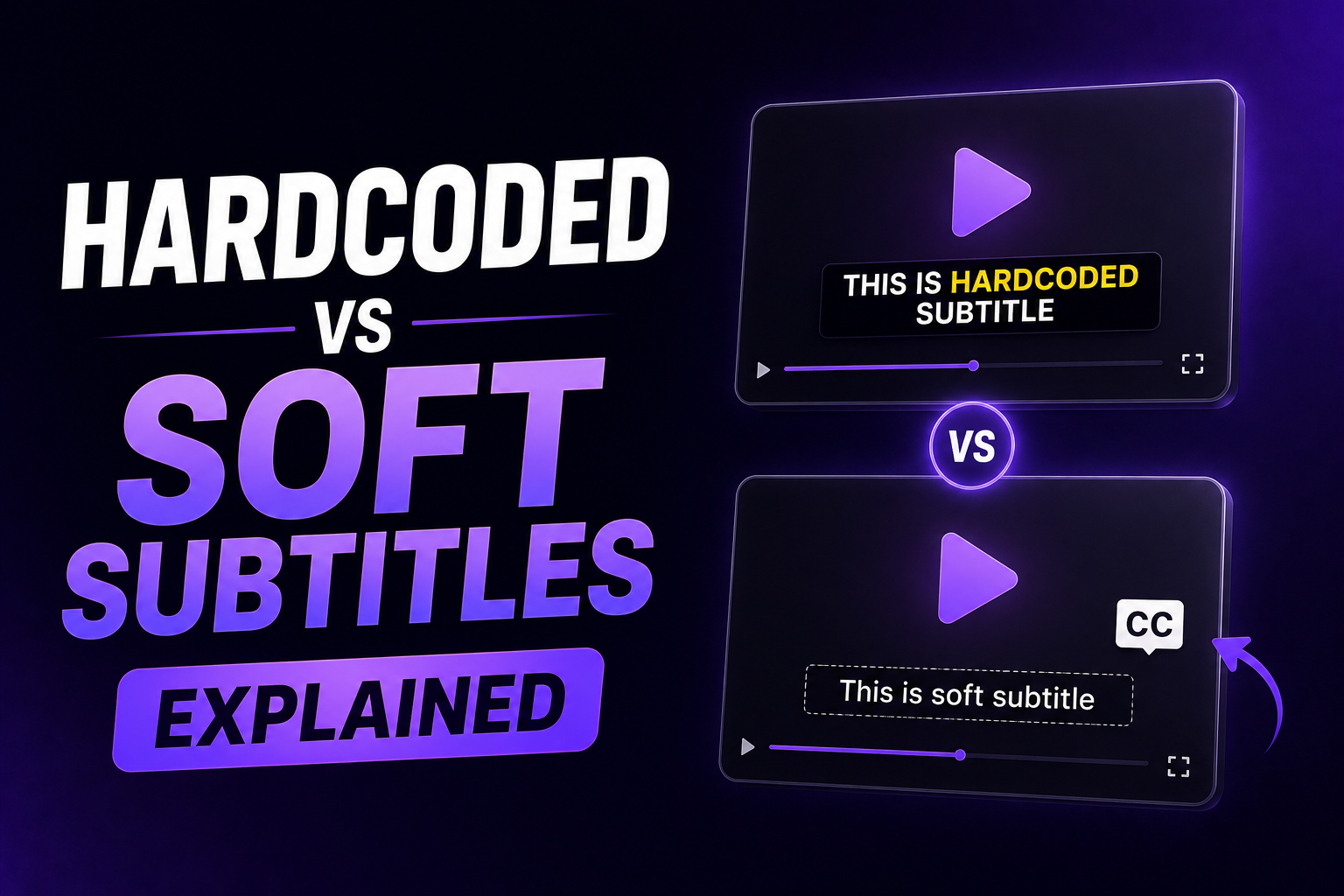
- Hardcoding means permanently embedding subtitles into the video, unlike softcoding which allows toggling.
Use tools like HandBrake, FFmpeg, or RenderCut to burn subtitles into the video.
Use hardcoded subtitles when you want them always visible, especially on platforms or devices that may not support toggling.
Hardcoding ensures consistency and compatibility across all viewing environments.
Creating Subtitles Easily with RenderCut
1. Auto-Generate Subtitles with AI
- Upload your video to RenderCut and let the built-in AI automatically transcribe and generate accurate subtitles.
- The system identifies speech in real-time and creates timed captions ready for editing or export.
2. Customize Captions for Branding
- RenderCut allows full styling control, changing font, size, color, and background.
Position subtitles anywhere on the screen and preview the result before export.
This ensures captions match your brand aesthetics or video style.
3. Export Options for Vimeo
- RenderCut supports .SRT export for soft subtitles compatible with Vimeo.
You can also burn-in subtitles for a hardcoded version when consistency is required across all devices.
Both formats are optimized for Vimeo uploads, ensuring smooth playback and accessibility.
Why Use RenderCut for Adding Vimeo Subtitles?
RenderCut makes adding subtitles to your Vimeo videos fast, flexible, and professional.
With AI-powered tools, you can generate accurate subtitles in seconds no typing needed. You get full design control to match your video’s style, from bold fonts to animated captions that grab attention. Whether you want soft subtitles for toggling on/off or hardcoded ones baked into the video, RenderCut gives you both options.
It’s built for creators, marketers, and educators who care about clear communication and viewer engagement. Everything is streamlined, so you spend less time editing and more time sharing.
FAQs
What subtitle formats does Vimeo support?
Vimeo supports subtitle formats like SRT, WebVTT, DFXP/TTML, and SCC. These formats help you add captions or subtitles that viewers can turn on or off. SRT and WebVTT are the most commonly used on Vimeo.
Can I edit subtitles after uploading to Vimeo?
Yes, you can edit subtitles after uploading to Vimeo. Just go to the video settings, open the “Distribution” tab, then “Subtitles,” and choose the file you want to update. Vimeo supports .SRT, .VTT, and .SCC files.
What’s the difference between SRT and hardcoded subtitles?
SRT subtitles are separate text files you can turn on or off, while hardcoded subtitles are permanently added to the video. SRT is flexible for editing, but hardcoded ensures subtitles always appear on every device.
Does RenderCut support multiple languages for subtitles?
Yes, RenderCut supports multiple languages for subtitles. You can create and edit subtitles in over 90+ languages using AI. It works great for global content, helping you reach audiences in English, Hindi, Spanish, French, and more.
Can I use RenderCut to subtitle videos for other platforms, too?
Yes, you can use RenderCut to subtitle videos for YouTube, Instagram, Facebook, LinkedIn, and more. It supports multiple formats and exports, making your content ready to upload across all major social platforms with styled captions.
Conclusion
Adding subtitles to Vimeo videos doesn’t have to be hard. From uploading .SRT files to hardcoding captions, you’ve learned the key ways to subtitle your content.
But if you want a faster, more professional workflow, RenderCut makes it easy, automatically generating, styling, and exporting subtitles that fit your video perfectly. Subtitles boost reach, clarity, and viewer retention.
So why not do it right? Try RenderCut today and give your Vimeo videos the polish they deserve—quickly, professionally, and without hassle.