What Is a Caption Style Template?
 RenderCutCreator Tips
A caption style template is a saved set of visual styling decisions that applies automatically to every caption in a video: font, size, color, highlight style, background treatment, animation, and text placement.
Instead of making those decisions from scratch on every new video, a creator or team saves their preferred settings once as a named template and applies the whole package to future videos in a single click.
Caption style templates are used in AI captioning tools, video editors, and dedicated subtitle tools. They exist to eliminate repetitive styling work, maintain brand consistency across a content library, and standardize the visual language of captions for teams or agencies managing multiple projects.
What a Caption Style Template Contains
A complete caption style template typically stores the following settings:
| Setting | What It Controls |
|---|---|
| Font family and weight | Which typeface captions use and how bold it appears |
| Font size | How large the text appears relative to the video frame |
| Primary text color | The default color for all caption text |
| Highlight color | The color applied to emphasized keywords within a caption line |
| Background treatment | Whether a semi-transparent bar, outline, or shadow appears behind the text |
| Animation style | How captions enter and exit the screen (fade, pop, word-by-word, static) |
| Chunk length | How many words appear on screen at once |
| Placement | Where on the frame captions are positioned |
When all of these settings are saved as a single named template, applying them to a new video requires one click instead of eight separate decisions.
Why Caption Style Templates Matter
Templates solve two separate problems: efficiency and consistency.
Efficiency: Setting up caption styling for a single video from scratch takes 5 to 10 minutes of decisions. Applying a saved template takes seconds. For a creator posting 20 videos per week, eliminating that decision overhead saves 1 to 2 hours per week. For an agency managing multiple client accounts, it scales further.
Consistency: Without a template, caption styling drifts across a content library. Different editors make different font or color choices. The same creator makes slightly different decisions on different days. Templates enforce a single visual standard across every video, which builds brand recognition over time and signals professionalism to viewers.
The more often a caption template is reused, the more important a review checklist becomes to catch timing, naming, and export issues before publishing.Types of Caption Style Templates
Templates broadly fall into three categories:
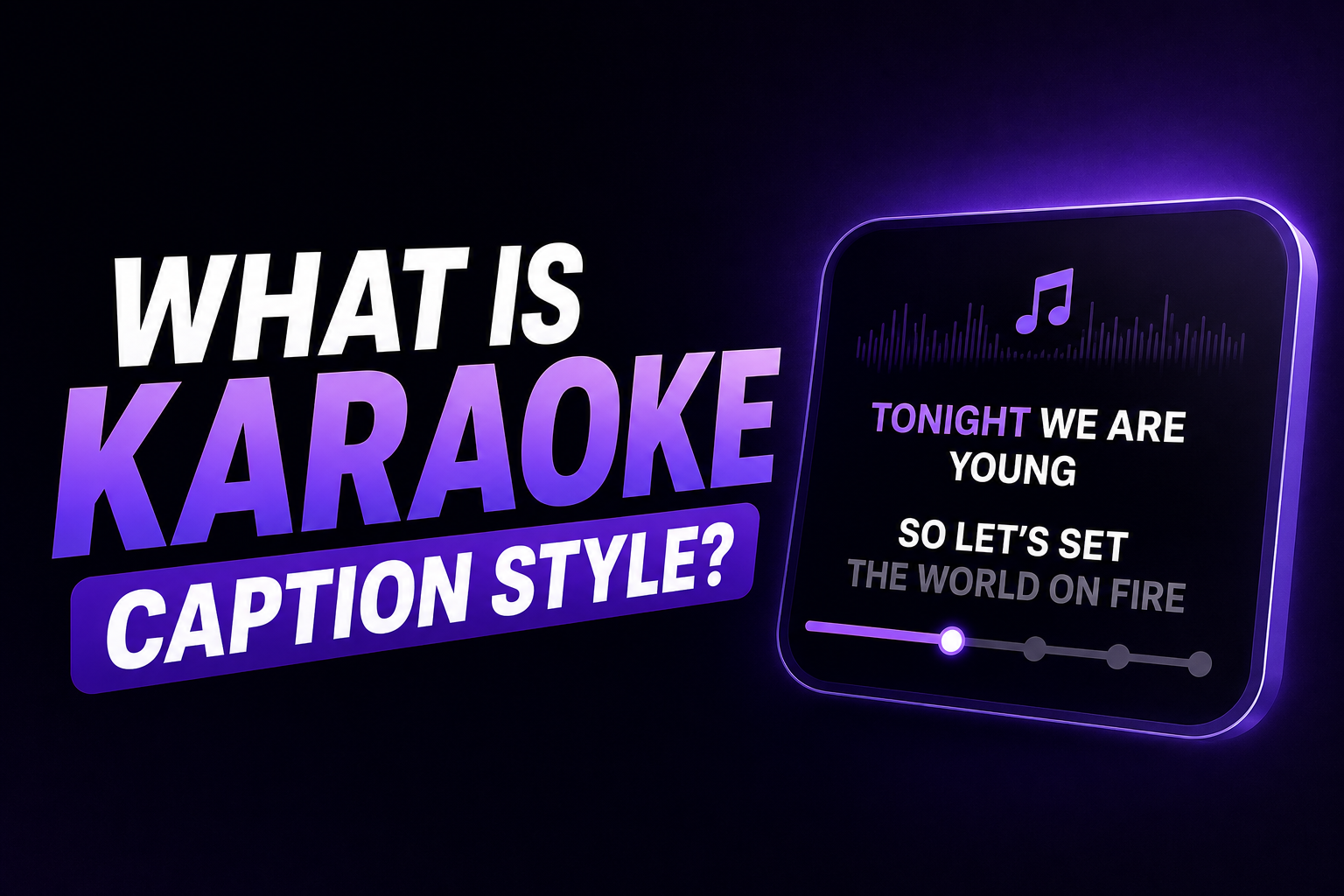
Preset templates are pre-built styles included with a captioning tool, usually named after visual categories like "Bold," "Minimal," "Karaoke," or "Trending." They give users a starting point without any custom setup. CapCut Web offers styles named Glow, Trending, and Aesthetic among others, with an AI option that analyzes content and suggests the most suitable template automatically.
Custom templates are user-built and saved, based on the creator's own brand decisions about font, color, and animation. Once saved, they remain available for every future project and can be renamed, duplicated, or adjusted.
Brand kit templates are custom templates tied to a specific brand or client identity, used in agency or team workflows where each account has its own distinct visual language for captions. These typically include client-specific brand colors as the highlight color and follow the typography choices already established in that brand's identity.
How to Create and Save a Caption Style Template
The process varies slightly by tool but follows the same general steps in most AI captioning platforms:
- Open a video in your captioning tool and generate AI captions
- Apply your preferred styling: choose the font, set the size, select the text color, add keyword highlights, choose a background treatment, and set the animation
- Preview the result on a few different caption lines to verify the styling works across different text lengths
- Look for a "Save as template" or "Save style" option within the styling panel
- Name the template something identifiable (your brand name, a client name, or a content category)
- The template now appears in your saved templates list for all future projects
Not all tools support saved templates on free tiers. Most require a paid plan or an account to persist templates across sessions.
Caption Style Templates vs Style Guides
A caption style template is a tool setting. A caption style guide is a document.
A style guide describes the decisions in human-readable form: which font, which colors, which chunk length, and why. It is used for onboarding team members, briefing freelancers, or documenting decisions for future reference.
A style template is the implementation of those decisions inside the captioning software. Ideally, both exist: the guide documents the reasoning, and the template applies the result.
For the full process of building a documented caption brand kit with saved template, see How to Build a Caption Brand Kit.
How Caption Style Templates Connect to Performance
Caption styling affects watch time and retention, not just aesthetics. Captions in 2026 serve a discovery function. AI-powered search on platforms like Instagram, TikTok, and YouTube indexes spoken words and on-screen text. The words in your captions are now searchable content that affects whether your video surfaces in recommendations and search results.
A well-designed template standardizes the styling choices that have the most impact on readability: short chunk length, keyword highlights, and strong contrast. Applying a high-performance template to every video means every video benefits from those styling choices automatically.
For the research on which specific styling elements drive retention, see Best Caption Styles That Increase Video Retention and Engagement.
Frequently Asked Questions
What is a caption style template?
A caption style template is a saved collection of visual settings that applies automatically to captions in a video: font, size, color, highlight style, background, animation, and placement. It eliminates repeated styling decisions and maintains visual consistency across a content library or team workflow.
What is the difference between a caption template and a preset?
A preset is a pre-built template provided by the captioning tool, with a name like "Bold," "Minimal," or "Karaoke." A custom template is built by the user from their own brand decisions and saved for reuse. Both function the same way: one click applies the stored settings to a new video.
Do all caption tools support saved templates?
Most dedicated AI captioning tools support saved templates on paid plans. Some free tiers restrict template saving to encourage upgrades. Platform-native caption tools (Instagram, TikTok, YouTube) do not support saved custom templates. General-purpose editors like CapCut support preset templates and some level of custom saving on paid plans.
How many caption templates should I have?
A solo creator typically needs one primary template (their standard brand style) and possibly a second for a different content tone or platform. An agency managing multiple clients needs one template per client to maintain brand separation. More than five to eight saved templates tends to introduce decision overhead that defeats the purpose of having templates at all.
Can I share a caption style template with my team?
This depends on the tool. Some platforms allow team workspaces where templates are shared across all members of an account. Others save templates to individual user accounts only. For agency workflows where multiple editors work on the same client content, a tool with shared workspace templates is worth prioritising.
Final Word
A caption style template is the difference between styling every video from scratch and applying a consistent, high-performance visual standard in one click. It solves the efficiency problem and the consistency problem simultaneously.
Build one template that matches your brand identity. Save it. Apply it to every video going forward. The time investment is 30 minutes once. The return is hours saved across every week of content production.
RenderCut supports saved caption style templates with word-level highlight control across all plan tiers. Build your template once and apply it to every video in one click. Try RenderCut free and create your first saved caption template today.
References
- Captions.ai Help Centre - Caption style template settings: font, color, background, animation, words per line, AI colour scheme (updated June 2026)
- CapCut - Caption templates guide: preset styles, AI style suggestion, and inline editing workflow
- Poko Video - Caption styles for marketing videos 2026: word-by-word kinetic, phrase-block, and minimal styles with SEO discovery context
- YumCut - Caption style guide: repeatable workflow with transcript, edit, style, review, and export steps; template reuse checklist