
How to Add Captions to Facebook Reels
 RenderCutCreator Tips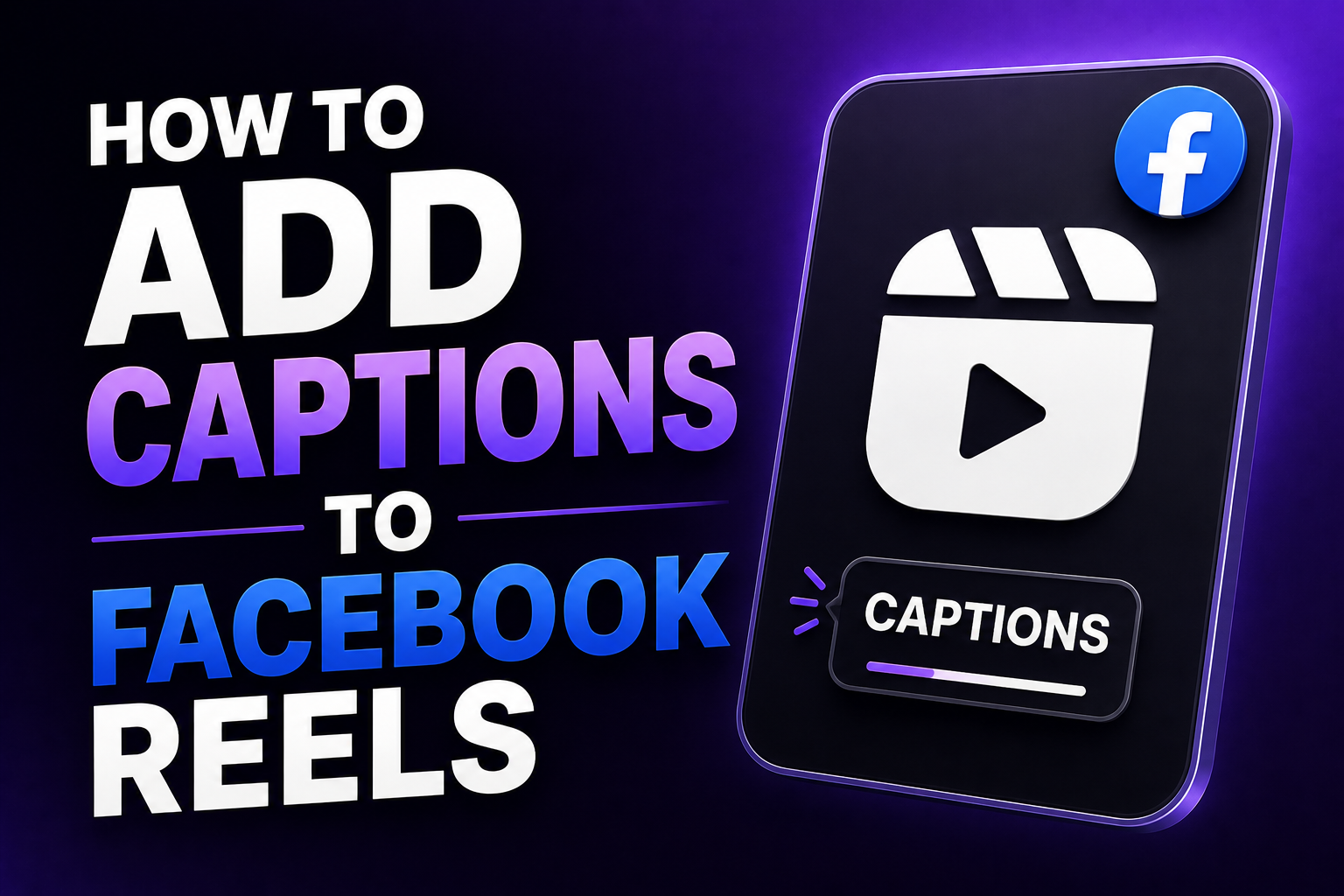
Facebook Reels generates over 200 billion views per day. 85% of Facebook videos are watched without sound, and that number keeps climbing as mobile viewing in public spaces becomes the norm. Without captions, the majority of people scrolling through Facebook Reels never hear a word you say.
Facebook's audience also skews older than Instagram or TikTok. A higher proportion of Facebook users have hearing differences, and a larger share watch in environments where audio is off by default. Captions on Facebook Reels are not optional in 2026. They are what keeps your message reaching the people who are watching.
This guide covers every method to add captions to Facebook Reels with step-by-step instructions for each, the safe zone rules specific to Facebook's UI, and how to handle captions when cross-posting the same video to Instagram.
What this guide covers:
- Why Facebook Reels needs captions more than most platforms
- 3 methods to add captions (in-app auto-captions, SRT upload, burn-in before upload)
- Step-by-step for each method
- Facebook Reels safe zones for caption placement
- SRT vs burned-in captions on Facebook
- Cross-posting: how to caption once and post to both Facebook and Instagram
- Best tools for Facebook Reels captions in 2026
1. Why Facebook Reels Needs Captions More Than Most Platforms
Facebook's user base includes a higher proportion of viewers over 35 than any other major short-form video platform. Approximately 15% of the global population experiences some form of hearing loss, and many more viewers have auditory processing challenges or simply prefer reading along. On Facebook, this demographic concentration makes caption accessibility more critical than on platforms with younger audiences.
Beyond accessibility, Facebook's algorithm in 2026 prioritizes watch time and completion rate as its primary distribution signals. Reels with captions consistently outperform identical content without captions by 40 to 60 percent in average watch time. Facebook's internal data shows that captioned Reels receive 16% more shares on average, likely because they are easier to consume and reshare in diverse contexts.
Every extra second a viewer stays on your Reel tells Facebook's algorithm the content is worth distributing further. Captions are the single fastest way to increase that dwell time without changing anything about the content itself.
2. Three Methods to Add Captions to Facebook Reels
| Method | Speed | Styling Control | Accuracy | Best For |
|---|---|---|---|---|
| 1. Facebook built-in auto-captions | Very fast | Minimal | 80 to 90% | Quick posts, casual content |
| 2. SRT file upload | Medium | None (platform renders text) | Depends on source | Search indexing, accessibility compliance |
| 3. Burn-in before upload | Fast | Full (word-level) | 95%+ | Branded, styled, professional Reels |
3. Method 1: Facebook Built-In Auto-Captions
Facebook has had automatic captioning for videos since 2016. The feature works directly in the Reels creation flow on both mobile and desktop in 2026.
On Mobile (iOS and Android)
- Open the Facebook app and tap the + icon to create a new Reel
- Record a new video or select one from your camera roll
- On the editing screen, tap Captions in the right-side toolbar
- Facebook automatically transcribes the audio and generates a preview
- Tap any word in the caption to correct errors
- Use the color circle at the top to change caption color
- Use the font options at the bottom to switch font styles
- Tap Done, complete your post details, and share
On Desktop (Facebook.com)
- Go to facebook.com and click Create Reel from your feed or profile
- Upload your video file
- In the editor, look for the Captions option in the right panel
- Click Generate captions and wait for transcription
- Review the generated text and edit any errors
- Save and publish
Pros: Fastest method, zero extra tools, captions are indexed by Facebook for search
Cons: Limited styling (basic font and color options only), accuracy drops with accents or background noise, no keyword highlighting or hook-first design
Languages supported: As of April 2026, Facebook supports auto-captions in English, Spanish, Portuguese, French, German, Italian, Hindi, Indonesian, Arabic, Japanese, Korean, and growing regional variants.
Important: If the Captions button does not appear on iOS, go to your phone Settings > Accessibility > Subtitles and Captioning and enable Closed Captions + SDH. This activates the auto-caption feature in Facebook for some iOS configurations.
4. Method 2: SRT File Upload
If you have a pre-written or AI-generated transcript, you can upload it as an SRT subtitle file when posting your Reel. Facebook renders the caption text from the SRT file as a toggleable overlay for viewers.
- Generate or export an SRT file from your captioning tool or transcription service
- Open the Facebook app and begin creating a Reel
- After uploading your video, look for Captions in the editor
- Select Upload SRT or Upload caption file instead of auto-generate
- Choose your SRT file from your device
- Review the caption preview for accuracy and timing
- Publish the Reel with the SRT track attached
When to use SRT: SRT files give Facebook's system clean, accurate text to index for search and discovery. If search discoverability matters for your content, pairing an uploaded SRT with burned-in styled captions (Method 3) gives you both benefits. The SRT provides indexable text; the burn-in provides the visual quality.
5. Method 3: Burn-In Captions Before Upload (Recommended)
This is the method that produces Facebook Reels with polished, branded, styled captions. You caption the video outside Facebook before uploading, so the captions are permanently part of the video file.
- Upload your raw video to an AI captioning tool
- Generate AI captions. Transcription takes seconds with 95%+ accuracy for clear audio
- Review and correct names, brand terms, and any technical vocabulary
- Chunk text into 3 to 5 word segments per line for mobile readability
- Highlight one keyword per chunk with a contrasting color or bold weight
- Write a hook caption for the first line that stops the scroll in the first 2 seconds
- Apply your saved style template for brand consistency
- Check placement against Facebook's safe zones (see Section 7 below)
- Export with hardcoded captions and upload to Facebook as a Reel
Time: 4 to 7 minutes per Reel for creators with a saved template. For the batch workflow at volume, see How to Caption 30 Videos a Week Without Burning Out.
Note: Burned-in captions cannot be toggled off by viewers or auto-translated by Facebook. If accessibility compliance or multilingual reach matters for your content, also upload an SRT file alongside the burned-in video.
6. Styling Best Practices for Facebook Reels
Facebook's audience consumes Reels differently from TikTok or Instagram viewers. The older demographic skews toward longer attention on content that delivers clear value, and away from content that is purely trend-driven or fast-paced.
| Element | Facebook Reels Recommendation | Why |
|---|---|---|
| Words per line | 3 to 7 words | Older audience benefits from slightly longer readable chunks |
| Font size | Minimum 24pt equivalent for mobile | More viewers may have mild visual impairment; larger text matters more here |
| Font style | Bold sans-serif | Same readability principles as all platforms |
| Animation | Karaoke (word-by-word) or clean static | Karaoke holds attention for storytelling, clean static works for business content |
| Contrast | High contrast essential | Facebook viewers are more likely to be in bright ambient environments |
| First line | Hook caption with clear topic signal | Slower scroll pace means a clear hook still matters but has more time to land |
For the full caption styling system with retention data, see Best Caption Styles That Increase Video Retention and Engagement.
7. Facebook Reels Safe Zones for Caption Placement
Facebook Reels UI covers the top and bottom 15 to 20% of the frame. Place captions between those zones, in the lower third but above the action bar.Facebook-specific safe zone rules:
- Bottom 15 to 20%: Covered by the user profile name, Reel description, and action buttons. Never place captions here
- Right side: Like, comment, share, and audio buttons stack down the right edge
- Top 10 to 15%: Covered by navigation and other UI elements
- Safe center zone: Roughly from 15% to 80% of frame height, horizontally centered
Cross-platform note: If you are posting the same video to both Facebook and Instagram Reels, keep captions within a centered 900x1400px zone on a 1080x1920 frame. This clears both platforms' UI overlays without needing separate exports.
8. Cross-Posting: Caption Once, Post to Both Facebook and Instagram
When you share a Reel on Facebook, it can be automatically shared to Instagram and vice versa depending on your account settings. However, captions added as a Facebook sticker overlay stay on Facebook only. They do not transfer with the video file to Instagram.
The solution: Use burned-in captions. Caption the video file before uploading to either platform. The same burned-in captioned MP4 posts correctly to both Facebook Reels and Instagram Reels from one file, with no re-captioning needed.
This is the highest-efficiency approach for any creator posting on both Meta platforms. For the full captioning workflow that scales this across multiple videos per week, see How to Add Captions to Instagram Reels.
9. Best Tools for Facebook Reels Captions in 2026
| Tool | Method | Word-Level Highlights | Facebook-Optimized Export | Pricing |
|---|---|---|---|---|
| Facebook native | In-app auto-captions | No | Yes (built in) | Free |
| RenderCut | Burn-in before upload | Yes (best-in-class) | Yes (MP4 export) | Free / $49 lifetime |
| CapCut | Edit and export | Limited | Yes | Free / $7.99 to $19.99/mo |
| Submagic | Auto-edit with captions | Yes | Yes | $14 to $41/mo |
| VEED | Browser-based burn-in | Limited | Yes | $12 to $24/mo |
For a direct comparison of the tool options across platforms, see Best AI Caption Tools for Reels in 2026.
Frequently Asked Questions
How do I add captions to Facebook Reels?
Tap the Captions button in the Facebook Reels editor after adding your video. Facebook auto-generates captions from the audio. You can review and edit the text, then choose a basic font and color. For styled, branded captions, use an AI captioning tool to burn captions into the video before uploading.
Does Facebook auto-caption Reels?
Yes. The Captions button in the Reels editor generates automatic captions using AI speech recognition. You can edit the text for accuracy after generation. Styling options in the native tool are limited to basic font and color choices.
Why are captions not showing on my Facebook Reel?
If auto-captions are not available, check that your account type supports the feature (it works best on personal and creator accounts). On iOS, you may need to enable Closed Captions + SDH in your phone's Accessibility settings before Facebook's caption tool becomes available. Alternatively, burn captions into the video before uploading to bypass the platform tool entirely.
Do burned-in captions work on Facebook?
Yes. Burned-in captions are permanently part of the video file and display on every platform and device. They cannot be toggled off by viewers. For accessibility compliance, pair burned-in captions with an uploaded SRT file so viewers who prefer toggleable captions can use them.
Can I use the same captioned video for Facebook and Instagram?
Yes. Burn captions into the video file before uploading. The same MP4 posts to both Facebook Reels and Instagram Reels with identical captions, no re-captioning needed. Caption stickers added inside Facebook's native editor do not transfer to Instagram when cross-posting.
Final Word
Facebook Reels sits at the intersection of the largest social network and the fastest-growing video format, with an audience that includes more viewers with accessibility needs than any other major short-form platform. Captions on Facebook are not a nice-to-have. They are what makes the content visible to the majority of people who will scroll past it.
Facebook's native auto-caption tool is fast and sufficient for casual posts. For branded content, the burn-in method produces the styled, professional captions that keep viewers watching and signal quality to Facebook's distribution algorithm. Pairing burn-in with an SRT upload gives you the visual quality and the search indexing benefit together.
Caption your next Facebook Reel before uploading. Keep captions in the safe zone. Write a hook-first opening line. The watch time improvement will show in the analytics within a few posts.
RenderCut handles AI transcription, word-level highlights, and clean MP4 exports that post correctly to Facebook Reels, Instagram Reels, and every other short-form platform from one file. Try RenderCut free and caption for all platforms in one workflow.
References
- BlitzCut - How to add captions to Facebook Reels 2026: all methods, safe zones, and best practices
- Opus Clip Blog - Facebook Reels caption and subtitle best practices: watch time data and SRT vs burn-in comparison
- Reel Video Captions - Facebook Reel captions tutorial 2026: native tool, Edits app, and burn-in workflows
- Meta for Business - How to use creative tools in Facebook Reels: official caption feature documentation