
How to Add Captions to YouTube Shorts
 RenderCutCreator Tips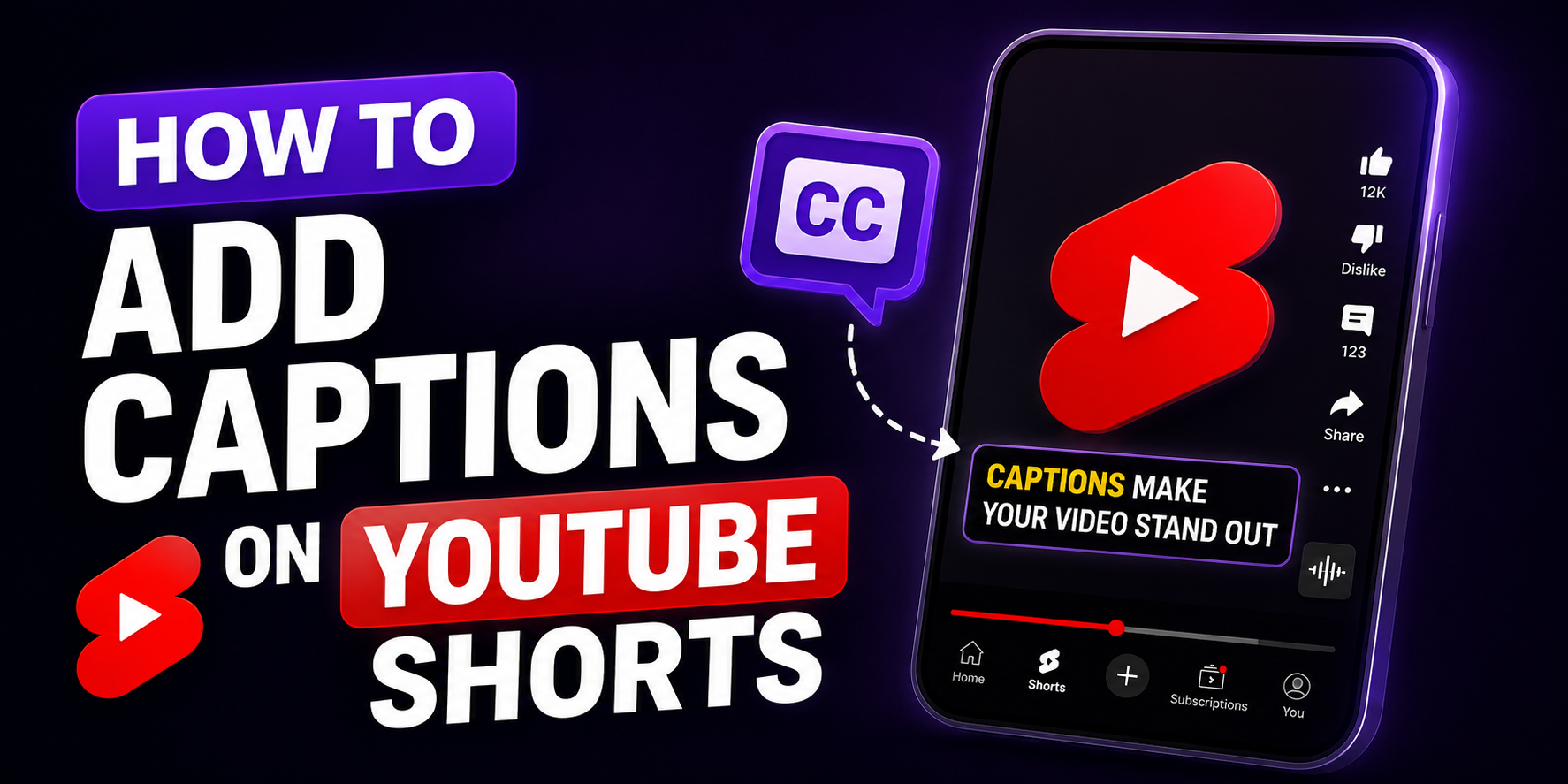
YouTube Shorts is the only major short-form platform where captions do double duty. They keep silent viewers engaged, and they feed YouTube's search algorithm directly. A Short with accurate, keyword-rich captions can surface in search results for queries that your title alone would never match.
But YouTube's built-in auto-captioning has real limitations. Accuracy drops with accents, background noise, or fast speech. Styling is plain white text with zero customization. And in 2026, viewers are used to bold, animated, branded captions from TikTok and Reels. Plain YouTube auto-captions look noticeably dated by comparison.
This guide covers every method to add captions to YouTube Shorts, the search and discovery angle that makes Shorts captions different from other platforms, and the styling approach that keeps your Shorts competitive with the polished captions viewers now expect everywhere.
What this guide covers:
- Why captions matter more for search on YouTube than any other platform
- How to use YouTube Studio's built-in auto-captions (step-by-step)
- The limitations of YouTube's native captioning
- The burn-in method for branded, styled captions
- Caption styling specific to YouTube Shorts
- Best tools for YouTube Shorts captions in 2026
1. Why Captions Matter More for Search on YouTube
Every other platform in this guide's cluster (TikTok, Instagram Reels) treats captions primarily as a retention and engagement signal. YouTube does that too, but it adds a layer none of the others have: search.
YouTube's algorithm reads the text in your captions to understand what your Short is about. This means a Short with accurate, descriptive captions can appear in YouTube search results for queries related to your content, even if those exact words never appear in your title or description.
What captions do for YouTube Shorts specifically:
- Search and discovery. YouTube indexes caption text and uses it to match your Short to relevant search queries
- Silent autoplay retention. A large share of Shorts views happen with sound off, especially when Shorts autoplay in a feed
- Accessibility and compliance. Captions meet accessibility standards for deaf and hard-of-hearing viewers
- Global reach through auto-translation. YouTube supports caption auto-translation, letting international audiences access your content in their language
- Retention signals. Accurate, readable captions increase watch time and completion rate, both of which YouTube weighs heavily in distribution
If you are only thinking about captions in terms of "will people read this while scrolling," you are missing half of what captions do on YouTube. They are also a direct input into how discoverable your Short is through search. For how YouTube Shorts compares to Instagram Reels on these and other signals, see YouTube Shorts vs Instagram Reels: Which Platform Is Better for Growth in 2026?
2. Method 1: YouTube Studio Auto-Captions (Built-In)
YouTube automatically generates captions for most uploads using AI-powered speech recognition. This is the fastest method and requires no extra tools.
Step-by-Step
- Open YouTube Studio and go to Content
- Click on your Short to open its details
- Click the Subtitles tab (sometimes labeled Subtitles and CC)
- YouTube auto-generates captions shortly after upload if your channel has captions enabled
- Click Duplicate and edit on the auto-generated track to review it
- Check each caption line against the audio for accuracy
- Edit any misheard words, especially names, brand terms, and technical vocabulary
- Adjust timing if any caption appears noticeably early or late
- Click Publish to save your edits
Pros:
- Free, built into YouTube, zero extra tools
- Captions are indexed for search automatically
- Viewers can toggle captions on/off
- Auto-translation available for global audiences
Cons:
- Accuracy issues with accents, background noise, or fast speech
- Styling is extremely limited: plain white text, no font choice, no color, no animation
- No keyword highlighting or hook-first caption design
- Captions look identical to every other auto-captioned Short, with no brand identity
Use this when: You want captions indexed for search at minimum effort, and visual styling is not a priority for this specific Short. For why plain auto-captions create a visible quality gap compared to styled captions, see Why Auto Captions Look Bad (And How to Make Them Look Professional).
3. Method 2: Manual Captions in YouTube Studio
If you want full accuracy and control over the text without relying on AI transcription, you can add captions manually.
Step-by-Step
- Go to YouTube Studio > Content > Shorts
- Click on the video title to open details
- Go to Subtitles and click Add Language
- Select your language, then click Add under Subtitles
- Choose Create new to start from scratch, or upload a transcript file with timecodes
- Type or paste your caption text, setting timecodes for each segment
- Preview the timing against the video
- Save and publish
Pros:
- 100% accuracy since you control every word
- No AI misinterpretation of slang, names, or accents
Cons:
- Time-consuming. Manually timing each caption segment for a 60-second Short can take 15 to 20 minutes
- Still limited to YouTube's default plain-text styling
- Does not scale for creators posting multiple Shorts per week
Use this when: Accuracy is critical (legal, medical, or technical content) and you have time to invest in manual timing.
4. Method 3: Burn-In Captions Before Upload (Recommended for Branding)
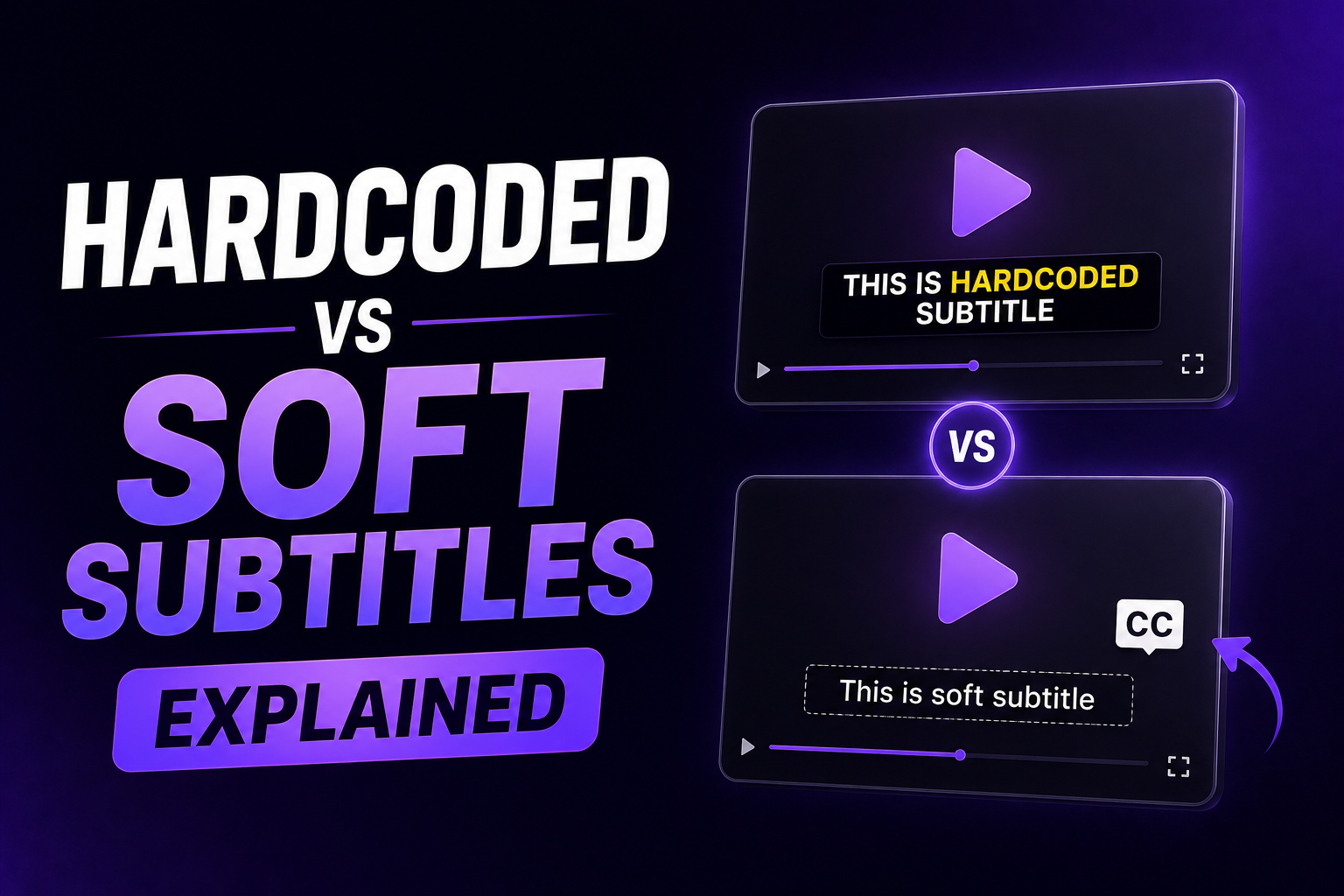
This is the method that produces Shorts with the polished, animated, branded captions viewers now expect. You caption and style the video with an AI tool before uploading to YouTube. The captions are part of the video file itself.
Step-by-Step
- Upload your raw video to an AI captioning tool
- Generate AI captions. Transcription takes seconds with 95%+ accuracy for clear audio
- Review and correct errors, especially names and technical terms
- Chunk text into 3 to 5 word segments. Full-sentence captions feel dated compared to the bold, broken-down style viewers expect in 2026
- Highlight one keyword per chunk using a contrasting color or bold weight
- Write a hook caption for the first line. This is what stops silent viewers from swiping past in the first few seconds
- Apply your saved style template for consistent fonts, colors, and placement across every Short
- Check placement against YouTube Shorts safe zones (see Section 6)
- Export with hardcoded captions and upload to YouTube
- Optionally, also add an SRT subtitle track in YouTube Studio for the same caption text, so the content stays indexed for search while the burned-in captions handle the visual styling
Why step 10 matters: Burned-in captions look great but are not separately indexed as a subtitle track by YouTube's accessibility and search systems unless you also upload an SRT file. Doing both gives you the best of each method: styled visuals plus search indexing.
Time: 5 to 8 minutes per Short. For batch processing across multiple Shorts per week, the full system is in How to Caption 30 Videos a Week Without Burning Out.
5. Caption Styling for YouTube Shorts Specifically
YouTube Shorts rewards total watch time in seconds, not just completion percentage. This changes the styling priorities slightly compared to TikTok or Instagram Reels.
| Element | YouTube Shorts Recommendation | Why |
|---|---|---|
| Caption style | Word-by-word (karaoke) or chunked with highlights | Reduces fatigue over longer Shorts (40+ seconds), keeping total watch time high |
| Font | Bold sans-serif (Montserrat, Roboto, Inter) | Roboto is YouTube's own default caption font, proven for legibility |
| First line | Search-relevant hook | Combines a scroll-stopping hook with a keyword relevant to what viewers might search |
| Length of Shorts | 40+ seconds performs better | Longer Shorts with sustained captions accumulate more total watch time |
| Multilingual | Add SRT translations for top performers | YouTube's search and auto-translation both benefit from multiple language tracks |
The first caption line matters twice on YouTube Shorts. It needs to function as a hook (stopping the scroll) and ideally contain language relevant to your topic (supporting search discovery). "This editing mistake is costing you views" works as both a hook and a search-relevant phrase for anyone searching about video editing mistakes.
For the full styling system with retention data across formats, see Best Caption Styles That Increase Video Retention and Engagement.
6. YouTube Shorts Safe Zones
YouTube's Shorts player overlays UI elements that can hide captions placed in the wrong area.
YouTube Shorts safe zone rules:
- Bottom zone: Covered by the channel name, Short title, and description text. Avoid placing captions here.
- Right side: Like, comment, share, and remix buttons stack down the right edge.
- Top: Generally clear, though some UI appears briefly on load.
- Center-safe zone: The horizontal center, roughly from 15% to 75% of the frame height, is the safest placement for captions.
Cross-posting tip: If you are posting the same captioned video to TikTok, Instagram Reels, and YouTube Shorts, keep captions within a centered 900x1400px zone on a 1080x1920 frame. This avoids UI overlap across all three platforms without needing separate caption placements for each. For the platform-specific safe zone and styling details on the other two platforms, see How to Add Captions to TikTok Videos and How to Add Captions to Instagram Reels.
7. Best Tools for YouTube Shorts Captions in 2026
| Tool | Method | Search-Indexed (SRT) | Word-Level Highlights | Pricing |
|---|---|---|---|---|
| YouTube Studio (native) | Auto-caption or manual | Yes | No | Free |
| RenderCut | Burn-in before upload | Yes (export SRT separately) | Yes (best-in-class) | Free / $49 lifetime |
| CapCut | Edit and export to YouTube | No (unless SRT added separately) | Limited | Free / $7.99 to $19.99/mo |
| Submagic | Auto-edit with captions | No (unless SRT added separately) | Yes | $14 to $41/mo |
The ideal workflow for YouTube Shorts combines both: burn-in styled captions for the visual experience, and an SRT subtitle track uploaded through YouTube Studio for search indexing and accessibility. Most AI captioning tools can export both formats from the same transcription.
8. Common Mistakes on YouTube Shorts Captions
| Mistake | Why It Hurts | Fix |
|---|---|---|
| Relying only on YouTube auto-captions for branded content | Plain text looks dated next to TikTok/Reels-style captions | Use burn-in method for any Short that matters for growth |
| Skipping the SRT upload after burning in captions | Loses search indexing benefits | Export and upload SRT alongside the burned-in video |
| Captions placed in the bottom zone | Hidden by channel name and title | Move to center-safe zone |
| Short captions with no search-relevant keywords | Misses YouTube's discovery advantage over other platforms | Write hook captions that double as relevant search phrases |
| Posting Shorts under 15 seconds with heavy captions | Limited time for total watch time accumulation | Aim for 40+ second Shorts where watch time can compound |
Frequently Asked Questions
How do I add captions to YouTube Shorts?
Open YouTube Studio, go to Content, select your Short, and click the Subtitles tab. YouTube auto-generates captions using AI speech recognition. Review and edit for accuracy. For styled, branded captions, use an AI captioning tool to burn captions into the video before uploading, then optionally add an SRT subtitle track in YouTube Studio for search indexing.
Does YouTube auto-caption Shorts?
Yes. YouTube Studio automatically generates captions for Shorts using AI-powered speech recognition, similar to long-form videos. The captions appear in the Subtitles tab where you can review and edit them. Styling is limited to plain white text with no customization options.
Do captions help Shorts show up in search?
Yes. YouTube indexes caption text and uses it to understand what your Short is about, helping it surface in search results for related queries. This is unique to YouTube compared to TikTok and Instagram, where captions primarily affect engagement signals rather than search discovery.
What is the best caption style for YouTube Shorts?
Word-by-word (karaoke) captions or chunked text with keyword highlights work best for YouTube Shorts, especially for Shorts 40 seconds or longer where reducing reading fatigue helps maintain total watch time. Bold sans-serif fonts like Montserrat or Roboto (YouTube's own default) perform reliably across devices.
Can I use burned-in captions and YouTube's subtitle feature together?
Yes, and this is the recommended approach. Burn styled captions into the video for the visual experience viewers see, then separately upload an SRT subtitle file through YouTube Studio. This gives you both the polished visual styling and the search indexing benefits of a proper subtitle track.
Final Word
YouTube Shorts captions do more work than captions on any other platform. They hold attention for silent viewers, they feed the search algorithm, and in 2026 they need to look as polished as what viewers are used to seeing on TikTok and Instagram.
YouTube's built-in auto-captions are free and search-indexed but visually plain. The burn-in method gives you the branded, animated look viewers expect, but only if you remember to also upload an SRT track to keep the search benefits. Doing both takes a few extra minutes and gives you the complete package.
Caption your next Short with a styled, chunked, highlighted approach. Write a hook line that doubles as a search-relevant phrase. Export both the burned-in video and an SRT file. Upload both. That is the full system for YouTube Shorts captions in 2026.
RenderCut handles AI transcription, word-level highlights, and clean exports for YouTube Shorts, including SRT export for search indexing. Try RenderCut free and give your Shorts the captions they need to compete and get discovered.
References
- Reap Video - How to add captions to YouTube Shorts: methods, styling, and best AI tools for 2026
- BigMotion - YouTube Shorts caption best practices: chunking, fonts, and search benefits
- ZapCap - YouTube auto-caption limitations and animated caption alternatives (2025-2026)
- CheckSub - YouTube Studio subtitle workflow and AI auto-captioning system overview