How to Cancel CapCut Subscription in 1 Minute (Step-by-Step Guide)
 RenderCutCreator Tips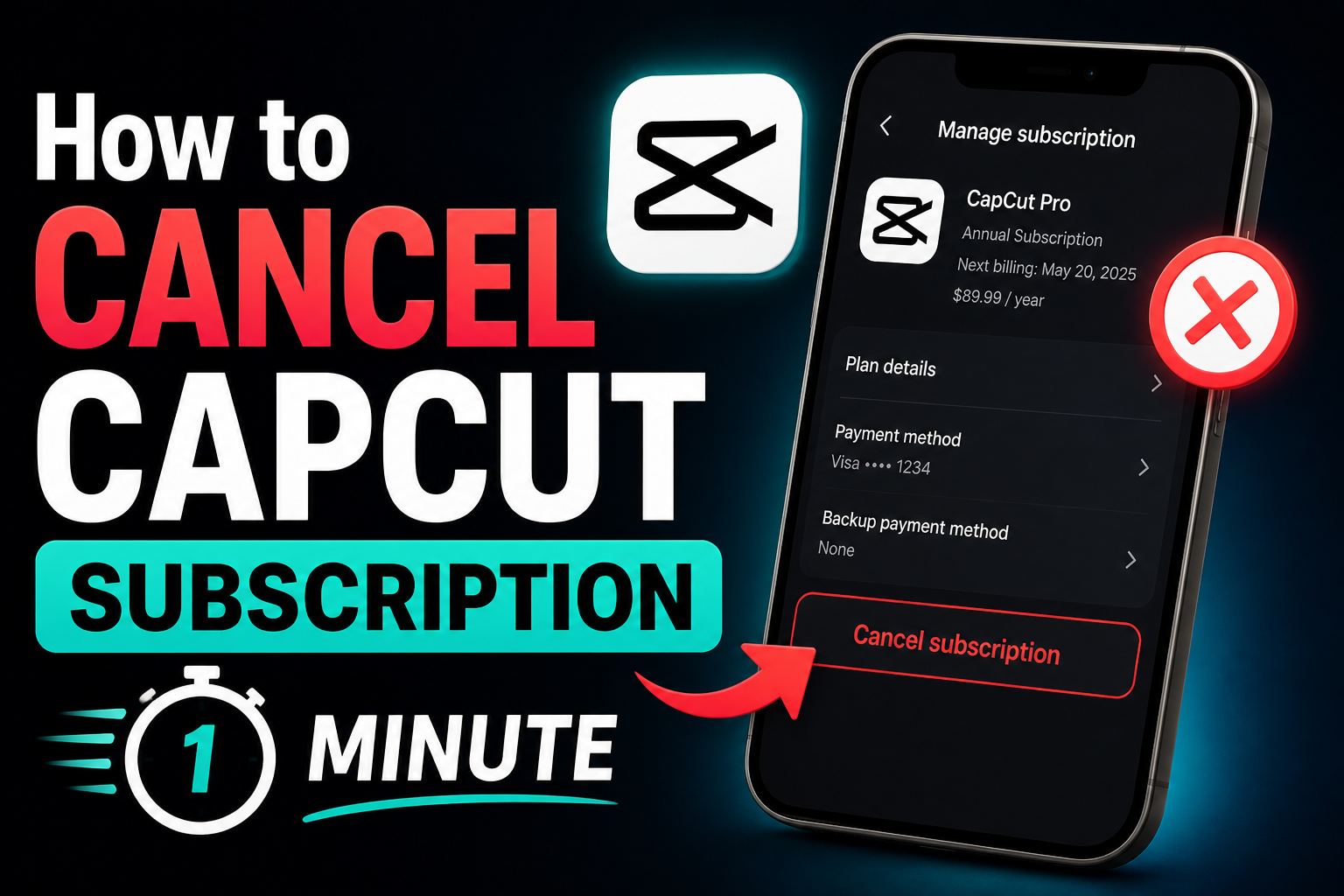
You want to cancel your CapCut subscription. You do not want a 2,000-word backstory about the history of video editing. You want the steps, done in under a minute, with zero confusion.
This guide gives you exactly that. The cancellation steps for iPhone, Android, and desktop/web. Plus the common issues that trip people up (like still getting charged after cancelling) and what to use instead if you are moving to a different tool.
Important before you start: You must cancel on the same platform you used to subscribe. If you signed up through your iPhone, cancel through Apple. If you signed up through Android, cancel through Google Play. If you signed up on the CapCut website, cancel there. This is the number one reason people think they cancelled but keep getting charged.
1. How to Cancel CapCut Subscription on iPhone (iOS)
If you subscribed to CapCut Pro through your iPhone or iPad, Apple handles the billing. You need to cancel through Apple’s subscription settings, not inside the CapCut app.
- Open the Settings app on your iPhone
- Tap your name at the top of the screen (your Apple ID)
- Tap Subscriptions
- Find CapCut in the list and tap on it
- Tap Cancel Subscription (it appears in red text)
- Confirm the cancellation when prompted
Done. Your Pro features stay active until the end of your current billing period. After that, the subscription stops and you will not be charged again.
If you see “Renew” instead of “Cancel”: That means the subscription is already cancelled. You are just seeing the option to resubscribe.
If CapCut is not listed: You probably subscribed through Google Play or the CapCut website, not Apple. Check the other methods below.
2. How to Cancel CapCut Subscription on Android
If you subscribed through your Android phone, Google Play handles the billing. Deleting the CapCut app does NOT cancel the subscription. You must go through the Play Store.
- Open the Google Play Store app
- Tap your profile picture in the top right corner
- Tap Payments and subscriptions
- Tap Subscriptions
- Find CapCut in the list and tap on it
- Tap Cancel subscription at the bottom
- Select a reason (pick anything) and confirm
Your Pro access continues until the current billing cycle ends. No further charges after that.
If CapCut is not in the list: Make sure you are logged into the correct Google account. If you have multiple Google accounts on your phone, the subscription may be under a different one. Switch accounts in the Play Store and check again.
3. How to Cancel CapCut Subscription on Desktop / Website
If you subscribed directly through the CapCut website using a credit card or payment processor, you need to cancel from the website. App store settings will not show this subscription.
- Go to capcut.com in your browser
- Sign in to your account
- Click your profile icon in the top right corner
- Click Account Settings or Subscription
- Find the subscription or billing section
- Click Cancel Subscription or Turn off auto-renewal
- Confirm when prompted
You may be asked to provide a reason for cancelling. Select any option and complete the process. Look for a confirmation email to verify the cancellation went through.
4. Quick Reference: Where to Cancel Based on How You Subscribed
| Where You Subscribed | Where to Cancel | How to Identify |
|---|---|---|
| iPhone or iPad | Settings > Apple ID > Subscriptions | Receipt email from Apple, charge shows as APPLE.COM/BILL |
| Android phone | Google Play Store > Payments and subscriptions | Receipt from Google Play, order number format GPA.XXXX |
| CapCut website (desktop) | capcut.com > Account Settings > Subscription | Receipt from CapCut or ByteDance, direct card charge |
Quick tip: If you are not sure where you subscribed, check your email for the original subscription receipt. It will tell you whether Apple, Google, or CapCut processed the payment.
5. Common Issues When Cancelling CapCut
These are the problems people run into most often. If you are stuck, one of these is probably the reason.
5.1 I Cancelled but I Am Still Being Charged
This almost always means you cancelled in the wrong place. If you subscribed through Apple but tried to cancel inside the CapCut app or on the website, the billing was never actually stopped. Go back to Apple Settings > Subscriptions and cancel there.
Also check that you cancelled the subscription, not just deleted your CapCut account. Deleting your account does NOT stop billing. Apple and Google handle payments separately from the app itself.
5.2 I Cannot Find CapCut in My Subscriptions
If you have multiple Apple IDs or Google accounts, the subscription may be under a different account. Switch to every account you have and check subscriptions on each one.
5.3 I Was Charged Right After the Free Trial
Free trials auto-convert to paid subscriptions unless you cancel at least 24 hours before the trial ends. If you were charged, the payment is usually non-refundable through CapCut directly. You need to request a refund through Apple (reportaproblem.apple.com) or Google Play’s refund portal.
5.4 I Cancelled but Lost Access Immediately
This should not happen. After cancelling, you keep Pro access until the end of your current billing period. If access was removed immediately, contact CapCut support or the app store that handled your billing.
6. Important Things to Know Before Cancelling
Before you hit cancel, here are a few things worth knowing so nothing catches you off guard.
- You keep Pro features until the billing period ends. Cancelling stops future charges but does not cut off access immediately. Use this time to export any projects that use Pro features, effects, or templates.
- Pro effects will be locked after access expires. Any project that uses Pro templates, effects, or music will show watermarks if you try to export it after your Pro access ends. Export everything you need before the billing period runs out.
- Deleting the app does not cancel the subscription. This is the most common mistake. The app and the billing are handled separately. Always cancel through the platform (Apple, Google, or CapCut website) before deleting the app.
- CapCut does not process refunds directly. If you need a refund for an accidental charge, go through Apple (reportaproblem.apple.com) or Google Play’s refund portal. Refund processing typically takes 5 to 14 working days.
- CapCut Pro pricing varies. Plans range from $7.99/month to $19.99/month depending on your region, platform, and when you subscribed. Annual plans run from $74.99/year to $179.99/year. Some users have reported price increases without notice.
7. Why Users Are Cancelling CapCut Pro
If you are cancelling, you are not alone. Here are the most common reasons creators move away from CapCut Pro based on user feedback across forums and review platforms.
| Reason | What Users Say |
|---|---|
| Features moving behind paywall | Effects and templates that were free are now locked behind Pro, making the free version less useful |
| Price increases | Users report subscription costs jumping from $9.99 to $19.99/month without warning |
| Limited caption styling | Auto captions work but lack word-level highlights, advanced styling, and saved templates |
| Billing confusion | Multiple subscription platforms (Apple, Google, direct) make cancellation confusing |
| Better tools available | Dedicated captioning and editing tools now offer more control at lower or one-time pricing |
The caption limitation is the one I hear most from creators I work with. CapCut generates captions, but the styling options are basic compared to tools built specifically for captioning. If you are switching because of caption quality, the deeper issue is covered in Why Most Video Captions Don’t Increase Views (And How to Fix It).
8. What to Use Instead of CapCut
If you are cancelling because you need better captions, more control, or a workflow that handles volume, here are three alternatives worth looking at.
RenderCut
Best for creators who want the deepest caption styling control without a monthly subscription. RenderCut focuses entirely on AI captioning with word-level highlights, saved style templates, hook title generation, and clean exports.
The lifetime deal (starting at $49 on AppSumo) means you pay once and never deal with subscription billing again.
If caption quality and styling control are the reason you are leaving CapCut, RenderCut is the most direct upgrade. A full comparison is in Best CapCut Alternatives for Auto Captions That Save Time and Improve Retention.
Submagic
Best for agencies and teams who want one-click AI Auto-Edit that handles captions, trimming, and B-roll together. Pricing starts at $14 to $20/month. Strong automation but less flexible on caption styling compared to dedicated tools.
Opus Clip
Best for creators who need to turn long videos (podcasts, webinars) into short clips with captions. Pricing starts at $15/month. Excellent at clipping, but caption styling is basic. Many creators use Opus Clip for clipping and a separate tool for caption styling.
A head-to-head comparison of all three is in Opus Clip vs Submagic vs RenderCut: Which Tool Is Best for Short Videos.
Frequently Asked Questions
How do I cancel my CapCut subscription?
Cancel through the platform you used to subscribe. For iPhone, go to Settings > Apple ID > Subscriptions > CapCut > Cancel. For Android, go to Google Play Store > Payments and subscriptions > Subscriptions > CapCut > Cancel. For desktop, go to capcut.com > Account Settings > Subscription > Cancel.
Why am I still being charged after cancelling CapCut?
You likely cancelled in the wrong place. If you subscribed through Apple but tried to cancel inside the CapCut app, the billing was not stopped. Check Apple Settings or Google Play subscriptions to confirm the cancellation was processed on the correct platform.
Can I get a refund after cancelling CapCut?
CapCut does not process refunds directly. You need to request a refund through Apple (reportaproblem.apple.com) or Google Play’s refund portal depending on where you were billed. Refunds are not guaranteed and typically take 5 to 14 working days to process.
Does deleting the CapCut app cancel my subscription?
No. Deleting the app does not stop billing. Apple and Google handle subscription payments separately from the app. You must cancel through your phone’s subscription settings before deleting the app.
What happens to my projects after I cancel CapCut Pro?
Your project files stay intact. However, any project that uses Pro templates, effects, or music will show watermarks if you try to export it after your Pro access ends. Export all important projects before your billing period runs out.
How much does CapCut Pro cost?
CapCut Pro pricing varies by region and platform. Monthly plans range from $7.99 to $19.99. Annual plans range from $74.99 to $179.99. Some users have reported unexpected price increases, so check your current billing amount in your subscription settings.
Final Word
Cancelling CapCut takes less than a minute when you know where to go. The key is cancelling on the same platform you subscribed through. iPhone users cancel through Apple Settings. Android users cancel through Google Play. Desktop users cancel through capcut.com. That is the entire process.
If you are cancelling because the captions are too basic, the styling is limited, or the monthly cost keeps climbing, you are not alone. Thousands of creators are making the same switch right now.
The next step depends on what you need. If captions are your main focus and you want advanced styling without another monthly bill, RenderCut gives you word-level highlights, saved templates, and AI captioning with a one-time lifetime payment. No subscription, no surprise charges, no cancellation headaches down the road.
Try RenderCut free and upgrade your caption workflow today.
References
- Apple Support – How to cancel a subscription on your iPhone or iPad
- Google Play Help – Cancel, pause, or change a subscription on Google Play
- CapCut Help Center – Refund and subscription management
- Trustpilot – CapCut user reviews on billing and cancellation issues